How to Set Different Wallpapers on Lock Screen & Home Screen (Android)
Set different wallpapers for Android lock screen and home screen with a clean workflow that improves readability and style consistency.

Founder & Lead Designer at DreamPixel Studio
Why Separate Lock and Home Wallpapers Work Better
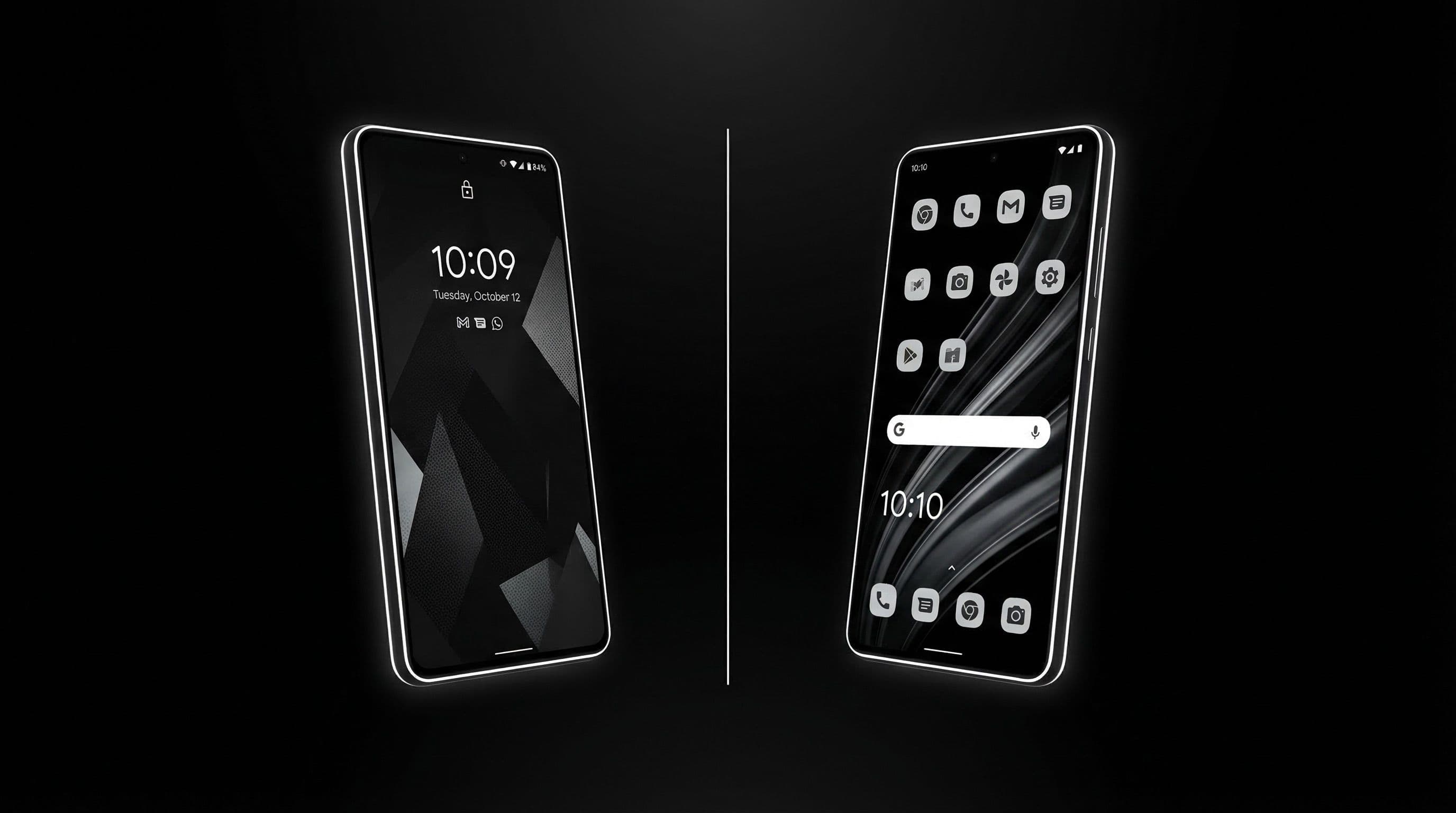
Your lock screen and home screen serve completely different purposes, so forcing one wallpaper to handle both creates unnecessary compromises. Lock screens primarily display the clock, date, and notifications — they benefit from dramatic, visually striking wallpapers with strong focal subjects. Home screens display your app grid, widgets, and dock — they need calmer compositions where icon readability takes priority over visual impact.
When you use one image for both, it is either too busy for comfortable icon reading (you chose the dramatic option) or too bland for an impressive lock screen (you chose the readable option). Splitting solves this tension completely — each screen gets exactly what it needs.
The effort of setting two wallpapers instead of one adds about 30 seconds to your setup, but the improvement in both visual impact AND daily usability is dramatic. Your lock screen wows you every time you check the time. Your home screen stays clean and functional every time you open an app.
Step-by-Step: Apply Different Wallpapers on Android
Step 1: Long-press your home screen and tap "Wallpaper and style" (or "Wallpapers"). Step 2: Select your first image — the dramatic one you want for your lock screen. Step 3: When prompted, choose "Lock screen only" rather than "Both." This applies your dramatic wallpaper only to the lock screen.
Step 4: Return to the wallpaper picker. Select your second image — the calmer one designed for icon readability. Step 5: Choose "Home screen only." Your two wallpapers are now independently set. Step 6: Verify by locking and unlocking your phone — the transition between your dramatic lock screen and functional home screen should feel seamless.
Important detail: the exact menu labels vary by manufacturer. Samsung calls it "Wallpaper and style," Pixel calls it "Wallpaper & style," Xiaomi calls it "Wallpapers," and OnePlus uses "Wallpapers & theme." The core workflow is identical — pick image, choose which screen, apply.
Best Pairing Strategy for Visual Consistency
The key is aesthetic coherence — your lock and home wallpapers should feel like they belong to the same world even though they look different. The easiest approach: use two variants from the same source or concept. Same color palette, same mood, different composition and detail levels.
Example pairings: For cyberpunk — lock screen gets the full dramatic neon alley scene with rain reflections, home screen gets a simpler dark gradient with one distant neon glow. For anime — lock screen shows the detailed character portrait, home screen shows a minimal silhouette or gradient from the same color family. For cottagecore — lock screen displays the full wildflower meadow scene, home screen gets a soft-focus floral texture.
What does NOT work: completely unrelated wallpapers. A cyberpunk lock screen with a pastel home screen feels jarring every time you unlock. Your brain expects continuity, and mismatched aesthetics create a subtle but persistent visual friction.
Crop and Readability Checklist
Lock screen checklist: Is the clock clearly visible against the wallpaper? Are notifications readable? Does the subject intersect with the clock area in an intentional way (not accidental)? Is the overall impact strong enough to justify being a lock screen?
Home screen checklist: Can you read every app label without squinting? Are notification badges (red dots) clearly visible against the background? Do widgets with text remain readable? Is there enough visual calm in the center and upper areas where icons sit?
Test both screens at three brightness levels: low, medium, and high. Lock screens that look amazing at max brightness sometimes become invisible at minimum brightness. Home screens that seem fine at normal brightness sometimes reveal readability issues in direct sunlight.
Pro Tip: Name your paired wallpaper files with matching suffixes like "cyberpunk-rain-LOCK" and "cyberpunk-rain-HOME" so future switching takes seconds instead of hunting through your gallery.
Troubleshooting Brand-Specific Android Variations
Samsung One UI: The wallpaper picker clearly separates lock and home options. You can also set wallpapers through Galaxy Themes for additional control. Samsung adds a "motion photo wallpaper" option for lock screen that other brands may not have.
Google Pixel: "Wallpaper & style" gives clean per-screen options. Pixel also offers AI-generated wallpapers and cinematic wallpapers that work independently on lock and home. Stock Android launchers provide the most straightforward separate-wallpaper experience.
Xiaomi MIUI / HyperOS: Look for "Wallpapers" in settings. Some apps and their launchers may apply themes that override your wallpaper selections. If your settings keep reverting, check if a theme is overriding your choices and switch to a custom theme mode.
Build Lock/Home Pair Collections with DreamPixel
Create paired collections in DreamPixel where every wallpaper has a designated lock and home companion. Label pairs with matching names so you can switch your entire setup in two taps instead of scrolling through random options.
Keep your pair library tight — 4-6 active pairs covers two to three weeks of rotation without repeating. Archive any pair where either the lock or home component did not perform well during daily use. One weak component ruins the entire pair.
High-Impact Pairing Examples You Can Copy
These proven pairings balance visual excitement with daily usability. Pairing 1: Cinematic character portrait (lock) + minimal dark gradient (home). The lock screen delivers visual punch, the home screen delivers clean readability. Pairing 2: Dark abstract art with single light source (lock) + muted texture with controlled contrast (home). Atmospheric and moody without sacrificing function.
Pairing 3: Vibrant nature scene with strong focal point (lock) + softened, blurred version of same scene (home). This creates a connected lock-home transition that feels like shifting from attention mode to productivity mode. Build three tested pairs using these templates and rotate weekly. Tested pairs eliminate the daily "what wallpaper should I use?" decision entirely.
Mistakes to Avoid When Splitting Wallpapers
Mistake 1: Pairing completely unrelated color families that feel disconnected. A tropical orange sunset lock screen paired with a cool blue cyberpunk home screen creates visual whiplash every time you unlock your phone. The transition should feel intentional — connected by at least one shared color, mood, or visual element.
Mistake 2: Using two equally busy, detail-heavy images for both screens. Your lock screen CAN be complex because there are fewer UI elements competing for attention. Your home screen MUST be calmer because icons, widgets, labels, and the dock all need visual breathing room. The fundamental principle: one screen is for impact, one screen is for function. Choose which is which and commit.
Related Articles

How to Set Wallpaper on Android — Step-by-Step Guide with Screenshots
Learn how to set wallpaper on Android step by step, including lock screen and home screen options, image prep tips, and screenshot checkpoints.
How to Enable Depth Effect Wallpaper on iPhone
Enable iPhone depth effect wallpaper correctly with compatible photos, lock screen setup steps, and fixes when depth effect is unavailable.
How to Set Auto-Changing Wallpaper Slideshow on Android
Set an auto-changing wallpaper slideshow on Android with built-in options, trusted apps, battery-safe intervals, and quality control tips.
FAQ
Can all Android phones use different lock and home wallpapers?
Most modern Android phones running Android 12 or later support separate wallpapers for lock and home screens. The feature is available on Samsung, Pixel, Xiaomi, OnePlus, and most other major brands. Menu labels differ but the core functionality is standard.
Why does my home wallpaper look too busy?
Your home wallpaper likely has too much visual detail or contrast in the center area where icons sit. Switch to a calmer variant from the same style family — similar colors and mood, but with reduced detail and lower contrast in the icon grid zone.
Should lock and home wallpapers match exactly?
They should share the same aesthetic identity (color palette, mood, visual style) but NOT be identical. The lock screen benefits from more dramatic compositions, while the home screen needs calmer layouts. Think of them as two outfits from the same wardrobe — coordinated, not identical.
What if my launcher removes wallpaper options?
Third-party launchers sometimes override or hide the per-screen wallpaper options. Use the Settings app directly (Settings > Wallpaper and style) to access the full wallpaper controls. If your launcher completely overrides wallpaper management, switch to the default launcher temporarily to set wallpapers, then switch back.
How often should I rotate wallpaper pairs?
A weekly rotation provides good variety without losing visual coherence. Always rotate both lock and home wallpapers together as a pair — changing just one creates a mismatch that breaks the coordinated aesthetic you worked to build.
Download free wallpapers at DreamPixel
Back to all articles