How to Enable Depth Effect Wallpaper on iPhone
Enable iPhone depth effect wallpaper correctly with compatible photos, lock screen setup steps, and fixes when depth effect is unavailable.

Founder & Lead Designer at DreamPixel Studio
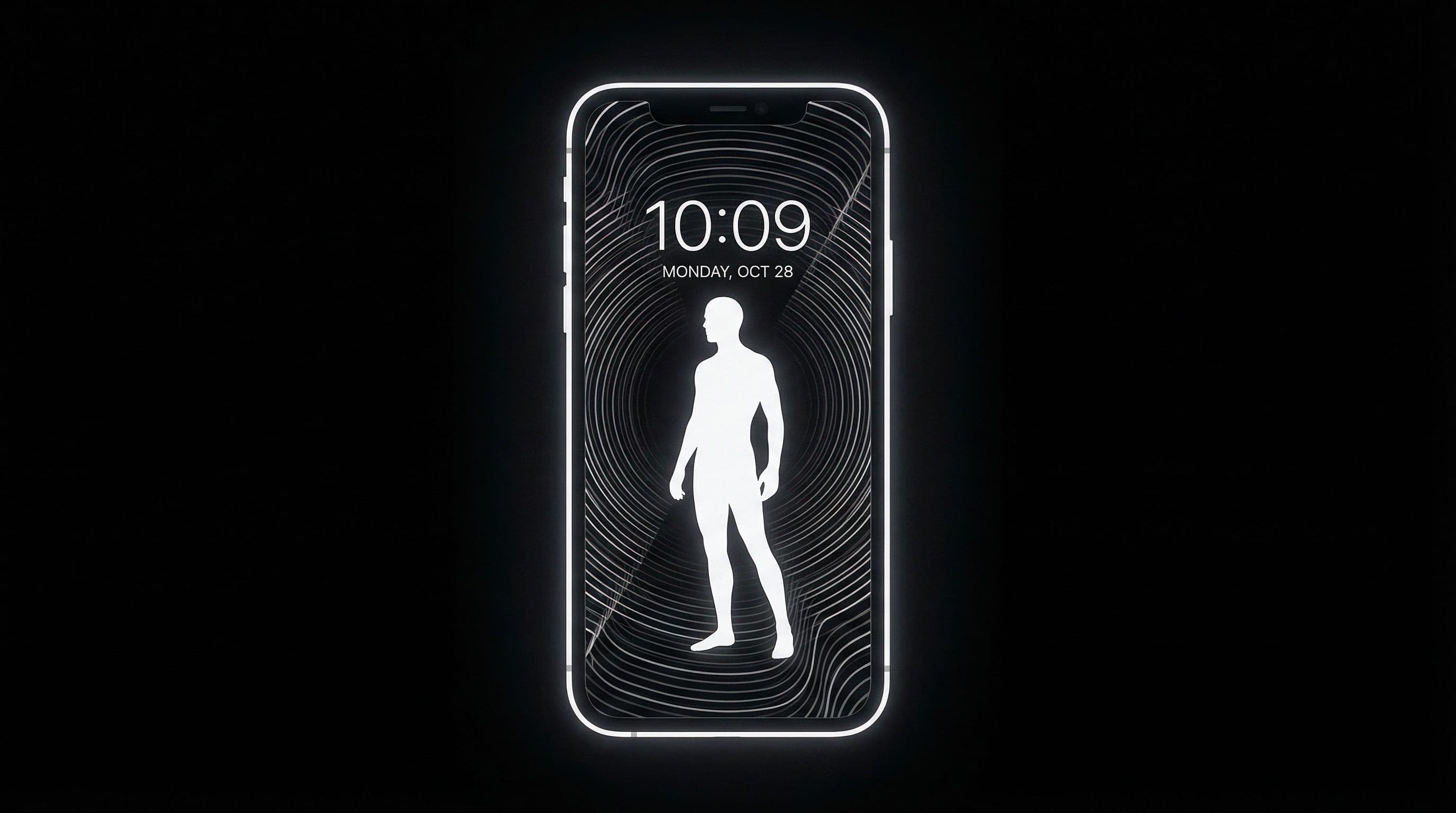
What iPhone Depth Effect Actually Does
Depth Effect is a lock screen feature that creates a layered, three-dimensional look by placing part of your wallpaper subject in front of the clock. iOS analyzes your photo, detects a foreground subject with clear edges, and then renders that subject above the clock while keeping the background behind it. The result looks like the clock is sandwiched between the background and your subject — a subtle but stunning visual effect.
The feature works automatically — you do not need to manually mask or edit the photo. But "automatically" comes with an important caveat: iOS needs a photo that meets specific requirements. Not every image can trigger depth effect. When the option is grayed out, it means iOS could not detect a suitable foreground subject with enough confidence.
Depth effect only works on the lock screen. It does not apply to home screens, and it only activates for the subject area that crosses the clock zone. If your subject sits entirely below the clock, the effect is technically active but invisible. The magic happens when a person, pet, or object partially overlaps where the clock digits display.
Step-by-Step: Enable Depth Effect
Step 1: Long-press your lock screen and tap "Customize" (or "+" to create a new set). Step 2: Choose "Photos" and select a portrait-style image with a clear foreground subject — a person, pet, flower, statue, or any object with well-defined edges against a distinct background.
Step 3: Position the image so the subject's upper portion (head, peak, top of the object) intersects the clock area. This is where the layering happens. Step 4: Look for the three-dot menu (⋯) and tap it — you should see a "Depth Effect" toggle. If visible, enable it.
Step 5: Tap "Done" and review the final result. Lock your phone and check: does the clock appear to sit behind your subject naturally? If so, the effect is working correctly. If the layering looks awkward (subject cuts into the clock in a strange place), re-enter customization and adjust the image zoom and position until the overlap feels intentional.
Why Depth Effect Option Might Be Grayed Out
Reason 1: Too many widgets. Depth effect requires space around the clock for layering to work visually. If you have widgets above, below, or beside the clock, iOS may disable depth effect because the layered subject would overlap widget text and create a readability mess. Try removing all widgets temporarily to see if depth effect becomes available.
Reason 2: No clear foreground subject. iOS needs a subject with well-defined edges that it can separate from the background. Abstract art, gradients, crowded group photos, and wide landscape scenes typically fail because there is no obvious "foreground thing" to place in front of the clock.
Reason 3: Subject edges are unclear. Even with a clear subject, if the edges blend into the background (backlighting, fog, matching colors), iOS may not detect them with enough confidence. Photos taken in Portrait mode often work better because they already have depth data that helps iOS identify subject boundaries. Reason 4: Image crop broke subject detection. If you zoomed in too much or cropped the subject partially off-screen, iOS may lose subject tracking.
Best Image Types for Reliable Depth Effect
Portrait photos of people work most reliably — apple literally designed this feature around human subjects. Clean portrait shots with bokeh backgrounds (blurred background) are almost guaranteed to trigger depth effect because iOS can easily detect the person's outline against the soft background.
Pets photographed against simple backgrounds also work well, especially close-up shots where the animal's outline is clearly separated from the background. Close-ups of flowers, statues, and architectural details can work if they have strong edge contrast against a distinct background.
What consistently fails: busy group photos (iOS cannot pick one subject), wide landscapes without a clear foreground element, abstract art and patterns, heavily edited images with artificial backgrounds, and images where the subject color matches the background color. The simpler and more contrasty your subject separation, the higher your success rate.
Pro Tip: Keep the clock area slightly darker than your subject's highlights. This ensures the depth layering effect is clearly visible — if the clock and subject have similar brightness, the layering effect becomes invisible even when technically active.
Fallback Style When Depth Effect Is Unavailable
If depth effect is unavailable for your chosen wallpaper, you can still create a premium-looking lock screen. Position your subject below the clock with clear separation. Use a wallpaper with a naturally dark or calm upper zone so the clock remains highly readable. This "standard" clock-above-subject layout looks clean and intentional.
Build two versions of your favorite wallpapers: one optimized for depth effect (subject crosses clock zone) and one optimized for standard mode (subject below clock, calm upper zone). This way, you always have a backup that looks great regardless of whether depth effect cooperates.
Save Depth-Ready Wallpaper Sets with DreamPixel
Create a "Depth Ready" folder in DreamPixel with images you have personally tested and confirmed to trigger depth effect on your specific iPhone model. Different iPhone models can behave slightly differently with depth detection, so personal testing is more reliable than general advice.
Re-test your depth-ready wallpapers after major iOS updates. Apple occasionally adjusts depth detection behavior, which can cause previously working images to stop triggering the effect (or previously failing images to start working). Keep your folder current.
Depth Effect Photo Composition Checklist
Before applying a wallpaper with the hope of depth effect activating, run this pre-check. Check 1: Is there ONE dominant foreground subject? (Multiple subjects confuse iOS detection.) Check 2: Does the subject have clear, well-defined edges? (Blurry, low-contrast, or backlit edges fail.) Check 3: Is the subject physically close enough to be the primary visual element? (Distant, small subjects in wide landscapes are ignored by depth detection.)
Check 4: Does the subject's upper portion (head, peak, top edge) naturally intersect the clock zone? (Depth effect is invisible if the subject sits entirely below the clock.) Check 5: Is the background distinctly different from the subject? (Subject color matching background color prevents detection.) If your wallpaper passes all five checks, depth effect will almost certainly activate. If it fails on two or more, use the wallpaper in standard mode instead.
Widget Layout Tradeoffs with Depth Mode
Depth effect and dense widget layouts are fundamentally at odds: depth effect places the subject IN FRONT of the clock, which means any widget near the clock gets partially hidden behind the subject. You need to choose which matters more for each lock screen setup — the visual drama of depth layering, or the information density of widgets.
Solution: keep two parallel wallpaper sets. Set A: depth-effect-optimized with zero or minimal widgets — this is your "aesthetic mode" lock screen for visual impact. Set B: widget-heavy with depth effect disabled, using a calm-top wallpaper that keeps all widget text perfectly readable — this is your "information mode" lock screen. Switch between them by long-pressing the lock screen and swiping. This parallel approach avoids the constant compromise of trying to make one wallpaper serve both visual depth and widget density.
Related Articles
How to Set Different Wallpapers on Lock Screen & Home Screen (Android)
Set different wallpapers for Android lock screen and home screen with a clean workflow that improves readability and style consistency.
How to Set Wallpaper on iPhone — iOS 18 Lock Screen & Home Screen Guide
Set wallpaper on iPhone in iOS 18 with a complete lock screen and home screen workflow, widget checks, and style pairing tips.
Best Jujutsu Kaisen Wallpapers 2026 — Gojo, Sukuna & Yuji Itadori
Find the best Jujutsu Kaisen wallpapers 2026 with Gojo, Sukuna, and Yuji styles that look sharp on lock screen and home screen setups.
FAQ
Which iPhones support depth effect wallpaper?
iPhone XR and later models with iOS 16 or later support depth effect on the lock screen. The feature requires the lock screen customization system introduced in iOS 16. Older iPhones or earlier iOS versions do not have this feature.
Why is depth effect disabled when I add widgets?
Widgets occupy the space where the subject would layer in front of the clock. If the layered subject overlapped widget text, it would create unreadable clutter. iOS disables depth effect to protect widget readability. Remove widgets to re-enable it.
Can depth effect work with any photo?
No. It requires a clearly identifiable foreground subject with well-defined edges separated from a distinct background. Portrait-mode photos, single-subject close-ups, and pet photos against simple backgrounds work best. Abstract images, busy group shots, and wide landscapes typically fail.
Does depth effect work on the home screen?
No. Depth effect is exclusively a lock screen feature. It only creates the layered clock-behind-subject effect on the lock screen. The home screen does not support this visual layering.
How do I improve depth effect success rate?
Use portrait-style photos with strong subject-background separation, clear subject edges, and contrasty backgrounds. Position the subject so it crosses the clock zone. Remove all widgets temporarily. If using AI-generated images, add "clear subject edges, distinct background separation, portrait depth" to your prompts.
Download free wallpapers at DreamPixel
Back to all articles