How to Set Wallpaper on iPhone — iOS 18 Lock Screen & Home Screen Guide
Set wallpaper on iPhone in iOS 18 with a complete lock screen and home screen workflow, widget checks, and style pairing tips.

Founder & Lead Designer at DreamPixel Studio
iOS 18 Wallpaper Workflow Overview
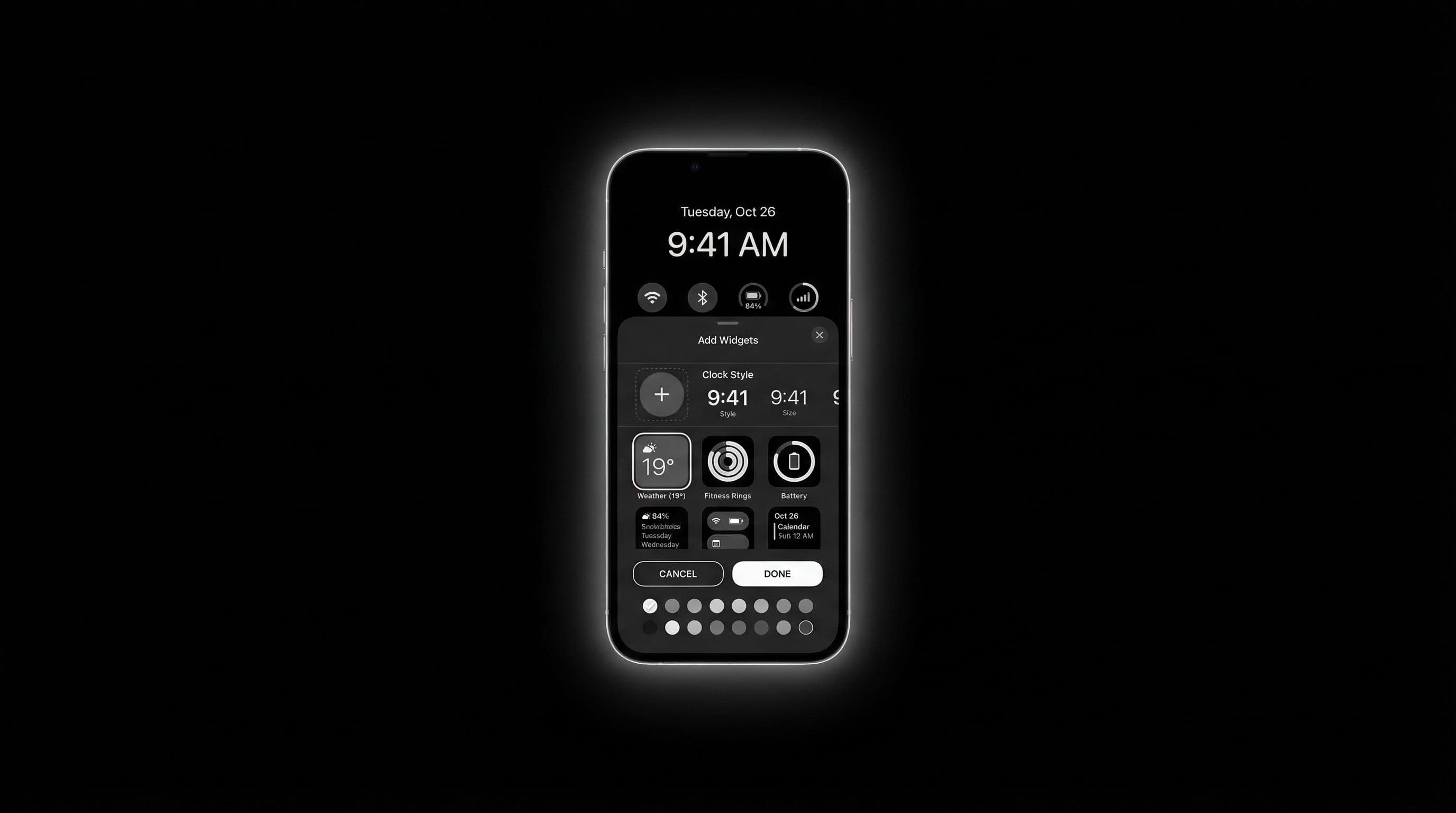
In iOS 18, Apple treats wallpapers as complete "sets" — each set includes a lock screen wallpaper, home screen wallpaper, and optional customization for clock style, widgets, and font colors. You can create multiple wallpaper sets and switch between them instantly, which makes iOS 18 uniquely powerful for wallpaper customization compared to previous versions.
The workflow centers around the lock screen editor. You start by customizing your lock screen, and iOS prompts you to either match your home screen or customize it independently. Understanding this two-step flow prevents the most common frustration: accidentally applying the same dramatic wallpaper to your home screen where it makes icons unreadable.
You can also link wallpaper sets to Focus modes — one set for work, another for personal time, another for sleep. This means your phone automatically changes its entire visual identity based on what you are doing. No other phone OS makes wallpaper switching this effortless.
Step-by-Step: Set Wallpaper from Lock Screen Editor
Step 1: Long-press your lock screen when the phone is locked. This opens the lock screen gallery showing your existing wallpaper sets. Step 2: Tap the blue "+" button to create a new wallpaper set, or tap "Customize" on your current set to modify it. Step 3: Choose "Photos" and select your desired image.
Step 4: Use pinch-to-zoom and drag to position your image. Pay attention to how the subject relates to the clock — the best lock screen wallpapers have their focal point below or beside the clock, not directly behind it. Step 5: Customize clock font, color, and widget placement around your chosen image. Step 6: Tap "Done."
Step 7: iOS now asks you to "Set as Wallpaper Pair" (applies the same image to home screen, usually blurred) or "Customize Home Screen." This is the critical moment — always tap "Customize Home Screen" to get independent control over your home wallpaper.
How to Customize Home Screen Separately
After tapping "Customize Home Screen," you get several options: use the same photo (often blurred by default), use a solid color extracted from your lock screen image, use a custom gradient, or choose a completely different photo. For maximum quality, choose a different photo specifically optimized for icon readability.
If you DO want to use the same image, at least enable the blur effect for the home screen. This softens the wallpaper behind icons, dramatically improving readability. The blur effect is particularly helpful when your lock screen wallpaper is complex or detailed.
You can also change your home screen's wallpaper appearance between light and dark modes. The "Automatic" setting shifts dark at night, which works beautifully with wallpapers that use medium tones — they darken just enough for comfortable nighttime reading without losing all visual character.
Widget and Clock Readability Checks
Before saving your wallpaper set, check four things: First, is the clock text clearly visible? iOS automatically adjusts clock color, but busy wallpapers behind the clock area can still reduce readability. Second, are lock screen widgets readable? Small widget text is particularly vulnerable to busy backgrounds.
Third, check notification preview text on the lock screen. Swipe down to see how incoming notifications look against your wallpaper. Fourth, on the home screen, verify every app label and widget are readable. Pay special attention to white-text labels against bright wallpapers and dark-text labels against very dark wallpapers.
If readability fails in any area, you have three fixes: reposition the wallpaper so the busy area is not behind text, switch to a calmer home screen variant, or add the blur overlay to the home screen. All three can be done without replacing the wallpaper entirely.
Pro Tip: Create two iOS wallpaper sets per aesthetic style — one with widgets for your daily information setup, and one without widgets for a cleaner look. You can switch between them instantly by long-pressing the lock screen, giving you "productive mode" and "aesthetic mode" from the same wallpaper.
Common iPhone Wallpaper Issues and Fixes
Issue: wallpaper appears blurry on home screen. Fix: iOS applies a default blur to home screen wallpapers. Tap "Customize" on the home screen and select the original photo without blur, or choose a separate high-resolution image optimized for icon readability.
Issue: wallpaper color shifts look wrong. Fix: disable "True Tone" temporarily to see the actual wallpaper colors. True Tone adjusts screen warmth based on ambient light, which can make carefully selected wallpaper colors look orange or yellow in warm environments.
Issue: subject placement broke after applying. Fix: long-press lock screen, tap "Customize," and re-adjust zoom and position. The wallpaper is not re-compressed during repositioning, so you can freely reframe without quality loss.
Build iOS 18 Wallpaper Sets with DreamPixel
Use DreamPixel to organize your wallpapers into pre-planned iOS 18 sets before applying them. Create folders by mood: "minimal" (clean gradients, simple subjects), "cinematic" (dramatic scenes, strong focal points), and "focus-friendly" (low distraction, maximum readability for work mode).
Keep 3-4 active sets on your iPhone and cycle through them weekly. The beauty of the iOS set system is that switching takes one second — long-press, swipe, tap. Make the most of this by maintaining a small library of high-quality sets rather than endlessly creating new ones.
Focus Mode Integration for Wallpaper Sets
One of iOS 18's most powerful but underused features: linking wallpaper sets to Focus modes. When you activate "Work" focus, your phone automatically switches to a clean, minimal wallpaper set with productivity widgets. When you switch to "Personal" focus, it switches to your aesthetic, expressive wallpaper set with social widgets. "Sleep" focus can use a near-black wallpaper that is comfortable for nighttime checks.
Setup: go to Settings → Focus → select a Focus mode → scroll to "Screens" → choose the lock and home screen set for that mode. The wallpaper change happens automatically and silently whenever your Focus mode activates — which can be scheduled (Work from 9-5), location-based (Work when at office), or manual. Your phone's visual identity adapts to your context without any daily effort.
Home Screen Icon Contrast Strategy on iOS
iOS enforces consistency in icon appearance more than Android — you cannot freely change icon label colors or add shadows to individual labels. This means your wallpaper must compensate for iOS's limited label customization. Choose home screen wallpapers with calmer mid-tones specifically behind the icon grid area — avoid high-frequency textures (busy patterns, fine detail) and extreme brightness (bright white areas make dark icon labels disappear).
If you want a bright or complex home screen wallpaper, enable the built-in blur effect: long-press home screen → "Customize" → toggle blur. This softens the wallpaper enough for icon readability while preserving the general color mood. Validate with your full widget stack active before saving — translucent widgets behave differently on different wallpaper brightnesses, and a widget that looked fine on the customization preview may become unreadable on the actual home screen.
Related Articles

How to Set Wallpaper on Android — Step-by-Step Guide with Screenshots
Learn how to set wallpaper on Android step by step, including lock screen and home screen options, image prep tips, and screenshot checkpoints.
How to Enable Depth Effect Wallpaper on iPhone
Enable iPhone depth effect wallpaper correctly with compatible photos, lock screen setup steps, and fixes when depth effect is unavailable.
Best Jujutsu Kaisen Wallpapers 2026 — Gojo, Sukuna & Yuji Itadori
Find the best Jujutsu Kaisen wallpapers 2026 with Gojo, Sukuna, and Yuji styles that look sharp on lock screen and home screen setups.
FAQ
Where is the wallpaper setting on iPhone in iOS 18?
Long-press the lock screen to open the wallpaper gallery. From there you can customize existing sets or create new ones. You can also find it in Settings > Wallpaper, but the lock screen method is faster and gives you instant visual preview.
Can I use different images for lock and home on iPhone?
Yes. When creating or editing a wallpaper set, choose "Customize Home Screen" instead of "Set as Wallpaper Pair." This lets you pick a completely different photo, solid color, or gradient for your home screen independently from your lock screen.
Why does wallpaper look blurry on home screen?
iOS applies a default blur effect to home screen wallpapers. To remove it, long-press home screen, tap "Customize," and select the original photo or a different high-resolution image without the blur filter applied.
Can I save multiple wallpaper setups in iOS 18?
Yes, iOS 18 supports creating and saving multiple wallpaper sets. You can switch between them instantly from the lock screen gallery. You can even link sets to Focus modes so your wallpaper changes automatically based on what you are doing.
What is the best wallpaper type for widgets?
Use medium-contrast wallpapers with calm areas specifically where widgets sit. Avoid very bright or very dark wallpapers that make widget text disappear. Solid colors and soft gradients work well. Test widget readability before finalizing your wallpaper set.
Download free wallpapers at DreamPixel
Back to all articles