How to Set Wallpaper on Android — Step-by-Step Guide with Screenshots
Learn how to set wallpaper on Android step by step, including lock screen and home screen options, image prep tips, and screenshot checkpoints.

Founder & Lead Designer at DreamPixel Studio

What You Need Before Setting Wallpaper on Android
Before you touch your wallpaper settings, there are two things to prepare. First, download a high-resolution vertical wallpaper that matches your screen ratio as closely as possible. Most modern Android phones use a 9:19.5 or 9:20 ratio — check your exact ratio in Settings > Display. Source files should be at least 1440x3120 pixels for a sharp result on flagship phones, or 1080x2340 for mid-range devices.
Second, clean your home screen layout first. Check widget placement, app grid density, and dock icon arrangement before applying any wallpaper. It sounds backward, but knowing your layout first means you can choose wallpapers that compose well with your specific icon placement rather than discovering conflicts after the fact.
If you download wallpapers from social media or messaging apps, assume they are compressed. Twitter, Instagram, and WhatsApp all reduce image quality significantly. Download directly from the original source or DreamPixel to get uncompressed files.
Method 1: Set Wallpaper from Home Screen (Quick Route)
This is the fastest method on most Android phones. Step 1: Long-press on an empty area of your home screen until the editing interface appears. Step 2: Tap "Wallpaper and style" or "Wallpapers" — the label varies by manufacturer (Samsung calls it "Wallpaper and style," Pixel calls it "Wallpaper & style," Xiaomi calls it "Wallpapers").
Step 3: Choose "Gallery" or "Photos" as your image source, then navigate to your downloaded wallpaper. Step 4: Adjust the crop frame — pinch to zoom, drag to reposition. The preview shows exactly how the wallpaper will look behind your icons. Step 5: Tap "Set wallpaper" and choose "Home screen," "Lock screen," or "Both."
Critical tip: do not just accept the default crop. Spend 30 seconds adjusting position so your subject sits where you want it relative to your icon grid. Most people skip this step and end up with their wallpaper's best feature hidden behind a row of apps.
Method 2: Set Wallpaper from Settings (Universal Route)
If the home screen long-press does not work (some custom launchers disable it), use the settings route. Open Settings > Wallpaper and style (or Display > Wallpaper on some brands). This path is available on virtually every Android variant regardless of launcher.
The settings route gives you the same options: choose image source, adjust crop, preview lock and home screens, and apply. Some manufacturers add extra features here that the home screen shortcut does not show — like wallpaper effects, color extraction for theming, or scheduled rotation.
On Samsung One UI, you can also access wallpapers through the Galaxy Themes app for additional wallpaper management options. On Pixel, the "Wallpaper & style" section lets you choose from categories and even generate AI-created wallpapers in some versions.
Screenshot Checkpoints You Should Capture
Here is a professional quality-checking workflow that takes 60 seconds: Screenshot 1 — your wallpaper at normal brightness on your busiest home page (the one with the most icons). This is your "daily readability" checkpoint. Screenshot 2 — your wallpaper at maximum brightness outdoors or under bright lighting. This checks if the wallpaper washes out.
Screenshot 3 — your wallpaper at minimum brightness in a dark room. This checks if the wallpaper loses all detail and becomes a featureless dark rectangle. Screenshot 4 — your lock screen with the clock and notifications visible. This confirms your lock screen wallpaper works with the overlay elements.
Save all four screenshots in a "Wallpaper QA" album. Comparing them side by side identifies problems instantly: icon labels disappearing, subjects getting cropped badly, or contrast failing under certain conditions. This turns wallpaper setup from guesswork into a repeatable quality process.
Pro Tip: Always preview your wallpaper on your busiest home screen page (the one with the most apps), NOT on an empty page. An empty page makes every wallpaper look good. Your busiest page reveals readability problems immediately.
Fixes for Common Android Wallpaper Problems
Problem: wallpaper looks blurry or pixelated. Solution: your source file is either low-resolution or was compressed during download. Re-download from the original source, check file dimensions (aim for 1440x3120+), and avoid downloading through social media apps that compress images.
Problem: icons are hard to read. Solution: your wallpaper has too much detail or brightness in the center icon grid area. Either darken the center zone using a photo editor (add a 15-20 percent opacity black overlay), or choose a wallpaper with naturally calm textures behind where icons sit.
Problem: the crop keeps cutting my subject. Solution: your wallpaper aspect ratio does not match your phone ratio. Pre-crop the image to your exact phone ratio (usually 9:19.5 or 9:20) in any photo editor before applying. This gives you full control over exactly what appears on screen.
Build a Setup-Ready Android Folder with DreamPixel
Create a DreamPixel folder named "Android Ready" and save only wallpapers that have passed your 4-screenshot quality check. This means every wallpaper in the folder is guaranteed to look great on your specific phone — no surprises, no "let me try this one and see" gambling.
Keep separate lock and home variants in the folder so future wallpaper swaps take seconds, not minutes. Review the folder every two weeks and archive anything that no longer excites you. A curated setup folder makes wallpaper changes instant, consistent, and satisfying.
Brand-Specific Shortcut Map for Faster Access
Every Android manufacturer puts the wallpaper settings in a slightly different place, which creates unnecessary confusion. Here is your shortcut map: Google Pixel — long-press home screen → "Wallpaper & style" (direct access to system wallpaper picker). Samsung Galaxy — long-press home screen → "Wallpapers and style" (opens Samsung's wallpaper manager), OR open Gallery → three-dot menu → "Set as wallpaper" (applies directly from any photo).
Xiaomi (MIUI/HyperOS) — check "Themes" app for carousel wallpaper options, or Settings → Display → Wallpaper. OnePlus (OxygenOS) — long-press home screen → "Wallpapers and style." Knowing exactly where your specific device hides the wallpaper settings saves the frustration of hunting through menus every time. The actual wallpaper application flow is nearly identical across all brands — the only real difference is where the menu lives.
Before-and-After Quality Audit Template
Build a quick quality audit habit: immediately after applying a new wallpaper, score it on three criteria. Sharpness — zoom into edges and fine details on a screenshot. Do they look crisp, or is there visible softness or JPEG artifacts? Score 1-5. Icon Clarity — can you read every app label at a glance without effort? Check both light and dark app icons. Score 1-5. Mood Fit — does this wallpaper make you feel good when you glance at your phone? Score 1-5.
Only keep wallpapers that score 12 or higher (total of 15). This simple audit takes 30 seconds but prevents the common trap of keeping mediocre wallpapers "just in case." Over a month, your collection naturally evolves toward consistently high quality because you are systematically filtering out everything that does not perform well on all three dimensions.
Related Articles
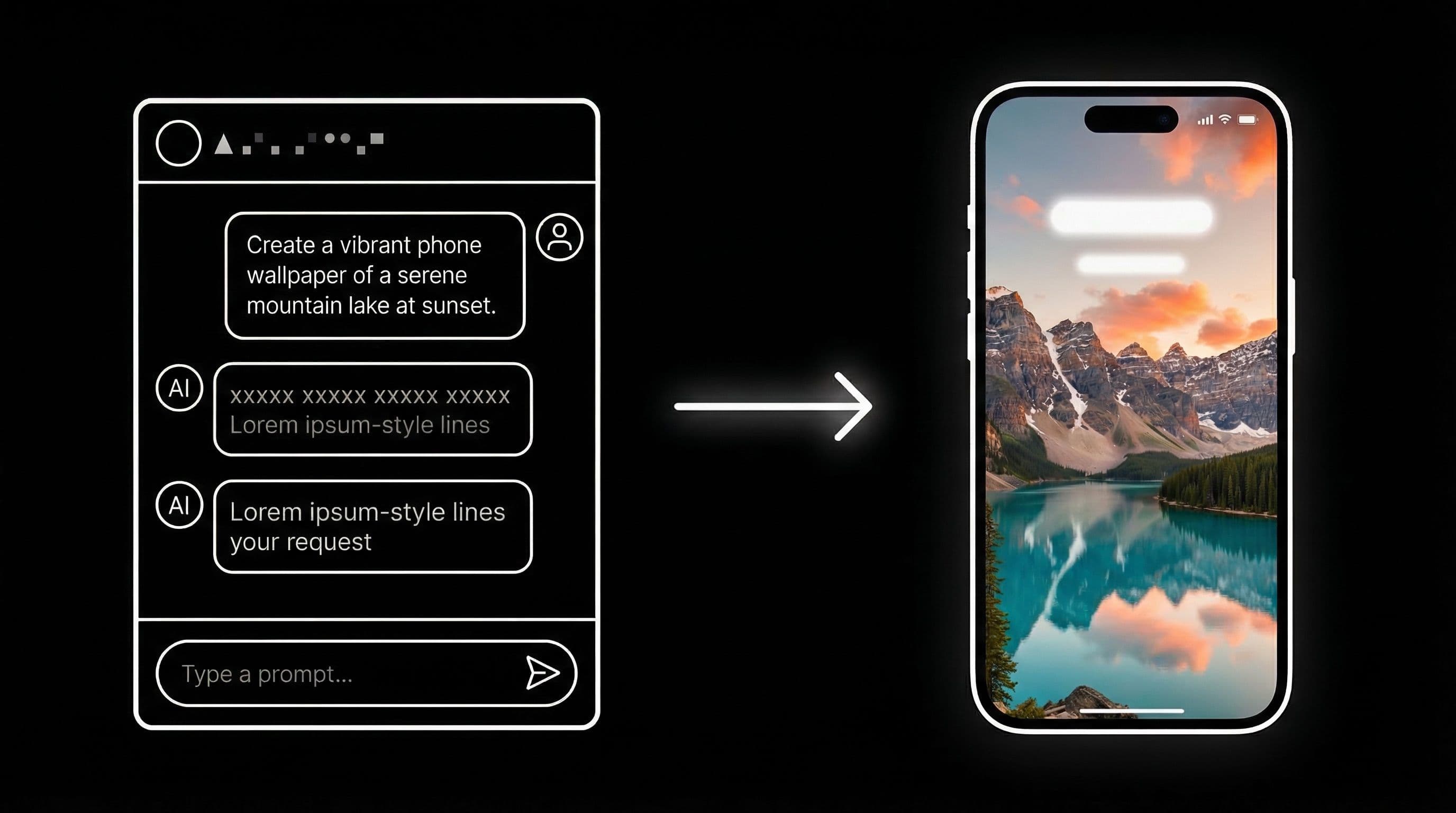
How to Use ChatGPT 4o to Generate Phone Wallpapers Step by Step
Follow a clear step-by-step ChatGPT 4o workflow to create, refine, and export phone wallpapers that look premium behind icons and widgets.
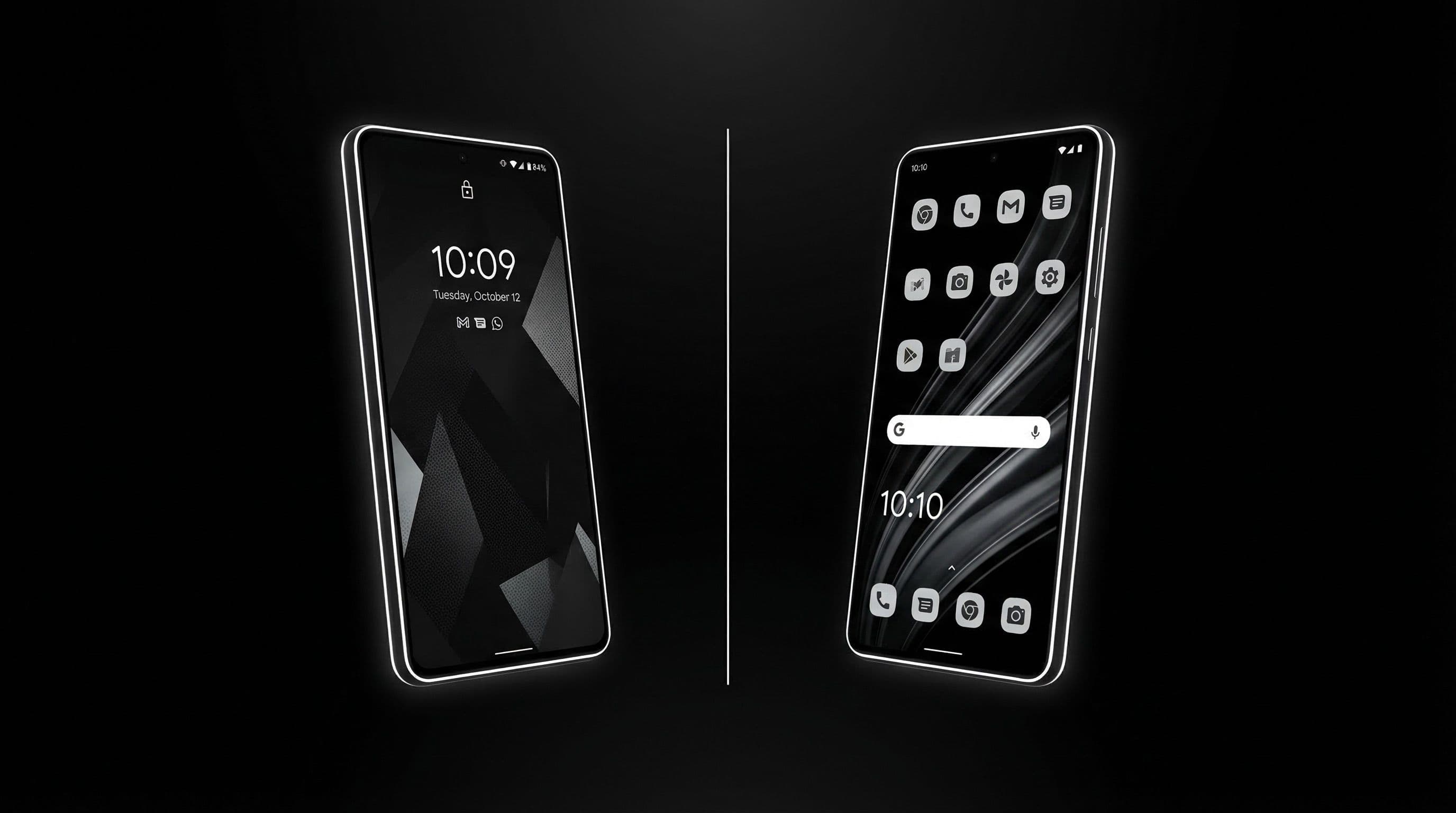
How to Set Different Wallpapers on Lock Screen & Home Screen (Android)
Set different wallpapers for Android lock screen and home screen with a clean workflow that improves readability and style consistency.
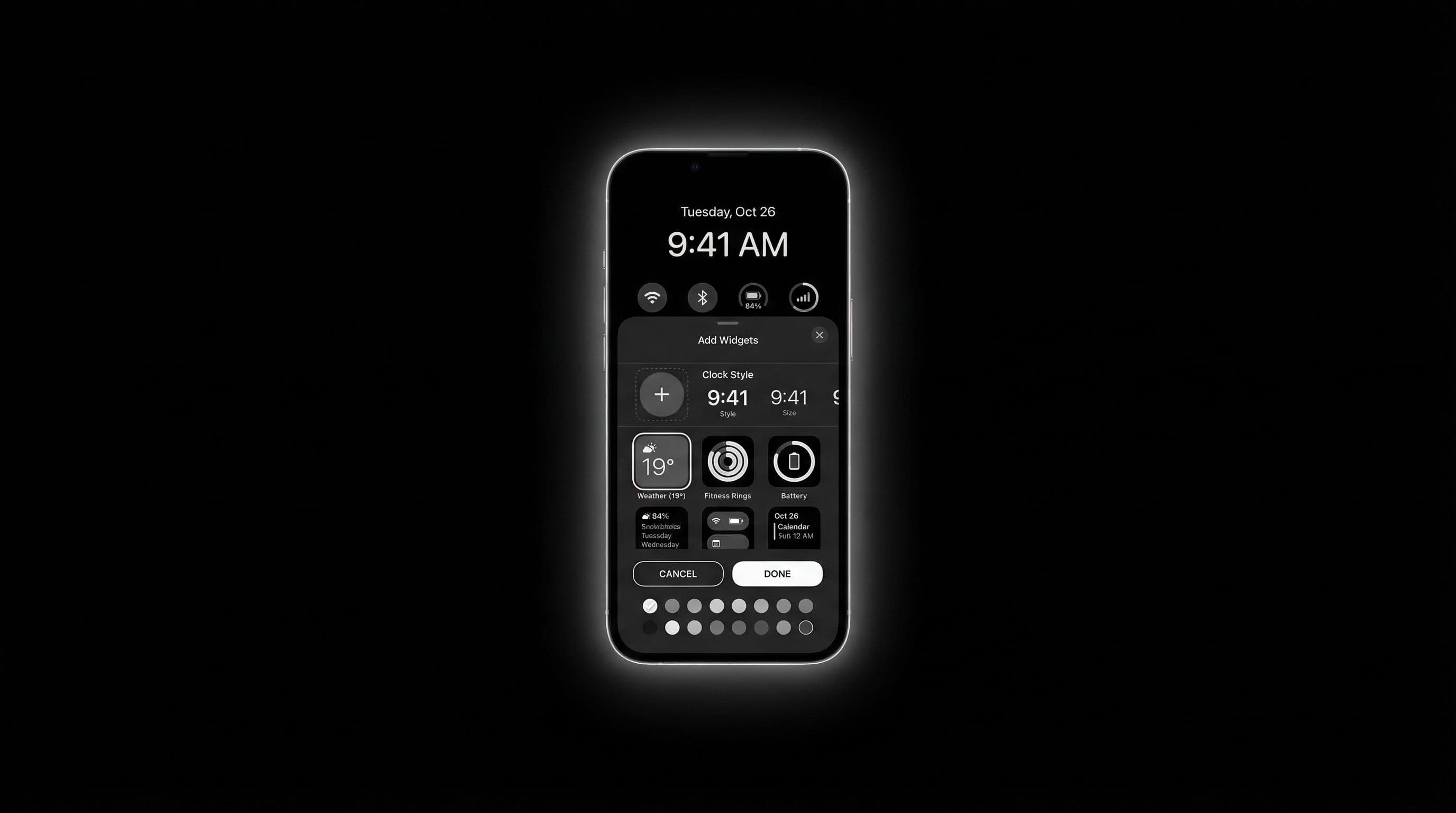
How to Set Wallpaper on iPhone — iOS 18 Lock Screen & Home Screen Guide
Set wallpaper on iPhone in iOS 18 with a complete lock screen and home screen workflow, widget checks, and style pairing tips.
FAQ
Where is the wallpaper setting on Android?
Two ways: long-press an empty area of your home screen and tap "Wallpaper and style," or open Settings > Wallpaper and style (or Display > Wallpaper, depending on your phone brand). The long-press method is faster. The Settings method works on virtually every Android phone regardless of launcher.
Can I set separate home and lock wallpapers on Android?
Yes. When you tap "Set wallpaper," most Android phones give you three options: Home screen, Lock screen, or Both. Choose the appropriate option for each image. You will need to repeat the process separately for each screen.
Why does my wallpaper look blurry after applying?
Almost always because the source image resolution is too low or was compressed before you downloaded it. Social media platforms and messaging apps reduce image quality. Download wallpapers directly from original sources or DreamPixel for uncompressed quality.
Should I crop before or during wallpaper setup?
Pre-cropping in a photo editor gives you more control and a sharper result. The Android wallpaper cropper has limited precision and sometimes applies slight compression. Match your phone's exact screen ratio before importing.
What is the fastest way to test wallpaper quality?
Apply the wallpaper, then immediately open your busiest home screen page with the most icons and widgets. If every app label is readable at a glance without squinting, and the overall look feels clean rather than cluttered, the wallpaper passes.
Download free wallpapers at DreamPixel
Back to all articles