How to Set Auto-Changing Wallpaper Slideshow on Android
Set an auto-changing wallpaper slideshow on Android with built-in options, trusted apps, battery-safe intervals, and quality control tips.

Founder & Lead Designer at DreamPixel Studio
Why Use an Auto-Changing Wallpaper Slideshow
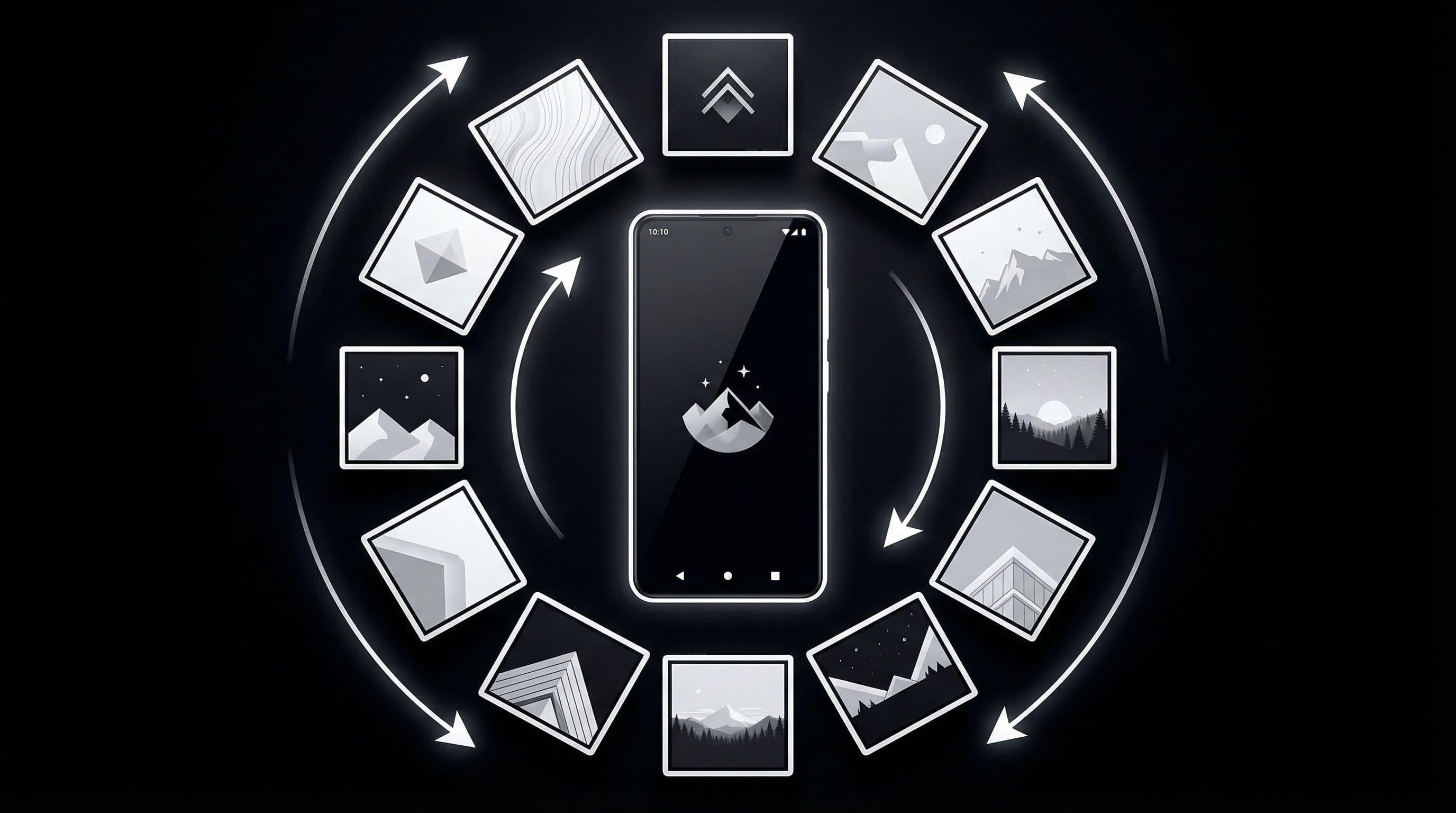
An auto-changing wallpaper slideshow keeps your phone visually fresh without any daily effort. Instead of manually selecting and applying a new wallpaper every few days, your phone rotates through a curated collection automatically — your lock screen and home screen feel different every morning without you lifting a finger.
The real value is not the automation itself — it is what the automation enables. When your wallpaper changes automatically, you notice each new image more consciously because it is a surprise. Manual wallpaper changes become forgettable because you just saw the image seconds ago in your gallery. Automatic rotation creates genuine "oh, nice" moments throughout your day.
The key to a good slideshow is curation quality, not rotation speed. A slideshow of 10 carefully tested wallpapers rotating every 6 hours beats a slideshow of 100 random images rotating every 5 minutes. Quality inputs create quality experiences.
Method 1: Use Built-In Wallpaper Rotation Features
Many Android manufacturers include native wallpaper rotation. Samsung: Open "Wallpaper and style" > look for "Wallpaper services" or "Daily wallpaper" options. Google Pixel: "Wallpaper & style" includes a "Daily wallpaper" category that rotates images from selected themes automatically each day.
Xiaomi MIUI/HyperOS: Check "Wallpapers" in settings for carousel or rotation options. OnePlus: Some OxygenOS versions include scheduled wallpaper changes in display settings. The built-in tools are almost always the most battery-efficient option because they are optimized for your specific phone hardware.
If your phone supports native rotation, try it first before installing any third-party app. Even if the options feel limited (some only rotate daily, not at custom intervals), the battery efficiency advantage makes the built-in method the smartest default choice.
Method 2: Use a Trusted Wallpaper Slideshow App
If your phone lacks native rotation or you want more control (custom intervals, separate lock/home slides, folder-based rotation), use a well-reviewed wallpaper slideshow app. Look specifically for apps that: support local folder access (not just their own gallery), offer interval control, and request minimal permissions.
Critical permission advice: the app needs storage/photo access and possibly display-over-other-apps permission. It should NOT need camera, microphone, contacts, or location access. If a wallpaper app requests these, it is harvesting data — uninstall immediately. Set rotation interval between 6 and 24 hours for practical daily use.
Popular reliable options include Muzei Live Wallpaper (supports custom photo sources and third-party extensions), Wallpaper Changer (simple folder-based rotation), and Auto Wallpaper Changer (supports per-screen rotation). Always check recent reviews before installing any app — wallpaper automation apps occasionally get acquired and filled with ads.
Best Interval and Source Folder Settings
Do NOT set intervals shorter than 1 hour. Changing wallpapers every 5 or 15 minutes is distracting, drains battery through constant image processing, and prevents you from actually appreciating any single wallpaper. You glance at your phone and it is different every time — this feels chaotic, not premium.
Recommended intervals: every 6 hours (changes roughly 3-4 times per day — morning, afternoon, evening), every 12 hours (morning and evening shift), every 24 hours (one fresh wallpaper per day). Most users find the 6-hour interval the sweet spot between variety and stability.
Folder quality is more important than interval: keep one curated folder with 10-20 wallpapers that have ALL been individually tested for readability on your phone. Never put untested images in your slideshow folder. One bad wallpaper that makes icons unreadable will frustrate you at exactly the wrong moment.
Pro Tip: Create separate slideshow folders labeled "Day Palette" (bright, warm wallpapers) and "Night Palette" (dark, calmer wallpapers). If your slideshow app supports time-based rules, set day palette for 6 AM to 6 PM and night palette for 6 PM to 6 AM. Your phone feels warmer during daylight and easier on the eyes at night.
Troubleshooting Slideshow Problems
Problem: wallpapers stopped changing. Fix: Android battery optimization often kills background slideshow apps after a period of inactivity. Go to Settings > Battery > Battery optimization > find your slideshow app > set to "Don't optimize" or "Unrestricted." Also verify storage permissions are still granted — Android can revoke unused permissions automatically.
Problem: random crops look terrible. Fix: some slideshow apps crop center-first, which can cut off subjects positioned at edges. Pre-crop all wallpapers to your exact phone ratio before adding them to the slideshow folder. This ensures every image fits perfectly without the app making bad automatic crop decisions.
Problem: slideshow uses too much battery. Fix: reduce change frequency (every 12-24 hours instead of every hour), disable touch-reactive or motion effects if the app includes them, and avoid using slideshow apps that download images from the internet — network activity is far more battery-intensive than local file rotation.
Build Slideshow-Ready Collections with DreamPixel
Create a "Slideshow Ready" folder in DreamPixel containing ONLY wallpapers that have passed your readability test, ratio check, and brightness verification. Every image in this folder should be a guaranteed winner that you are happy to see at any time of day.
Keep the folder small (10-20 images) and refresh it every two weeks by swapping out 2-3 images that no longer excite you. This keeps the rotation feeling fresh without requiring a complete overhaul. Quality over quantity is the foundation of a satisfying automated wallpaper experience.
Slideshow Folder Hygiene Rules
Your slideshow is only as good as your worst wallpaper in the folder. When the rotation randomly selects a blurry, poorly cropped, or icon-unreadable wallpaper, the entire slideshow experience feels cheap — even if the other 19 images are perfect. Rule 1: EVERY image in a slideshow folder must be individually tested on your actual phone for sharpness, readability, and crop fit BEFORE it enters the folder.
Rule 2: Remove duplicates and near-duplicates immediately. Two slightly different crops of the same sunset add zero variety to the rotation. Rule 3: Run a weekly cleanup — open your slideshow folder, review each wallpaper, and delete anything that no longer excites you or that you have not enjoyed seeing in the past week. The goal: a slideshow folder where EVERY wallpaper rotation is a genuine "oh, nice" moment, not a "meh, that one again" experience.
Battery-Aware Slideshow Scheduling
If your slideshow app supports time-based scheduling rules (some advanced apps do), optimize for battery by using longer intervals during work hours (every 12 hours) and shorter intervals only when your phone is actively charging (every 2 hours while plugged in). This gives you maximum variety when battery is unlimited and minimal processing when battery matters.
Also consider screen-off triggers: some slideshow apps can change wallpaper only when the screen turns off, which is far more battery-efficient than timer-based changes because it piggybacks on an existing system event rather than creating a new one. Avoid rapid-switching schedules (every 5-15 minutes) regardless of battery — these feel chaotic and prevent you from actually appreciating any single wallpaper.
Related Articles

How to Set Wallpaper on Android — Step-by-Step Guide with Screenshots
Learn how to set wallpaper on Android step by step, including lock screen and home screen options, image prep tips, and screenshot checkpoints.
How to Set Different Wallpapers on Lock Screen & Home Screen (Android)
Set different wallpapers for Android lock screen and home screen with a clean workflow that improves readability and style consistency.
How to Use Live Wallpapers on Android Without Draining Battery
Use live wallpapers on Android with smooth visuals and controlled battery impact through frame-rate, brightness, and background setting optimizations.
FAQ
Do all Android phones support auto wallpaper slideshow?
Not all have built-in rotation, but virtually all Android phones can use third-party slideshow apps that handle wallpaper rotation. Samsung, Pixel, and Xiaomi often include native rotation options. Other brands may require a separate app.
What slideshow interval is best for battery?
Every 12 to 24 hours has minimal battery impact because the phone only processes one image change per cycle. Every 6 hours is still very efficient. Anything shorter than 1 hour wastes battery without meaningful visual benefit.
Why did my slideshow stop working?
Android battery optimization is the most common cause — it kills background apps that it considers inactive. Disable battery optimization for your slideshow app. Also check that storage permissions have not been automatically revoked by Android.
Can I use separate lock and home slideshows?
Some apps support per-screen rotation with different folders and intervals for lock and home screens. Built-in manufacturer tools typically apply one rotation to both screens. Check your specific app settings to see if per-screen control is available.
How many wallpapers should be in my slideshow folder?
Start with 10-20 high-quality, tested wallpapers. This provides roughly 1-3 weeks of variety before repeating. Avoid folders with 100+ images — most will be untested and some will inevitably make icons unreadable. Quality curation beats quantity every time.
Download free wallpapers at DreamPixel
Back to all articles