How to Make AI Wallpapers That Look Good Behind App Icons
Use composition, contrast zones, and icon-safe prompt language to make AI wallpapers that stay beautiful and readable behind app icons.

Founder & Lead Designer at DreamPixel Studio
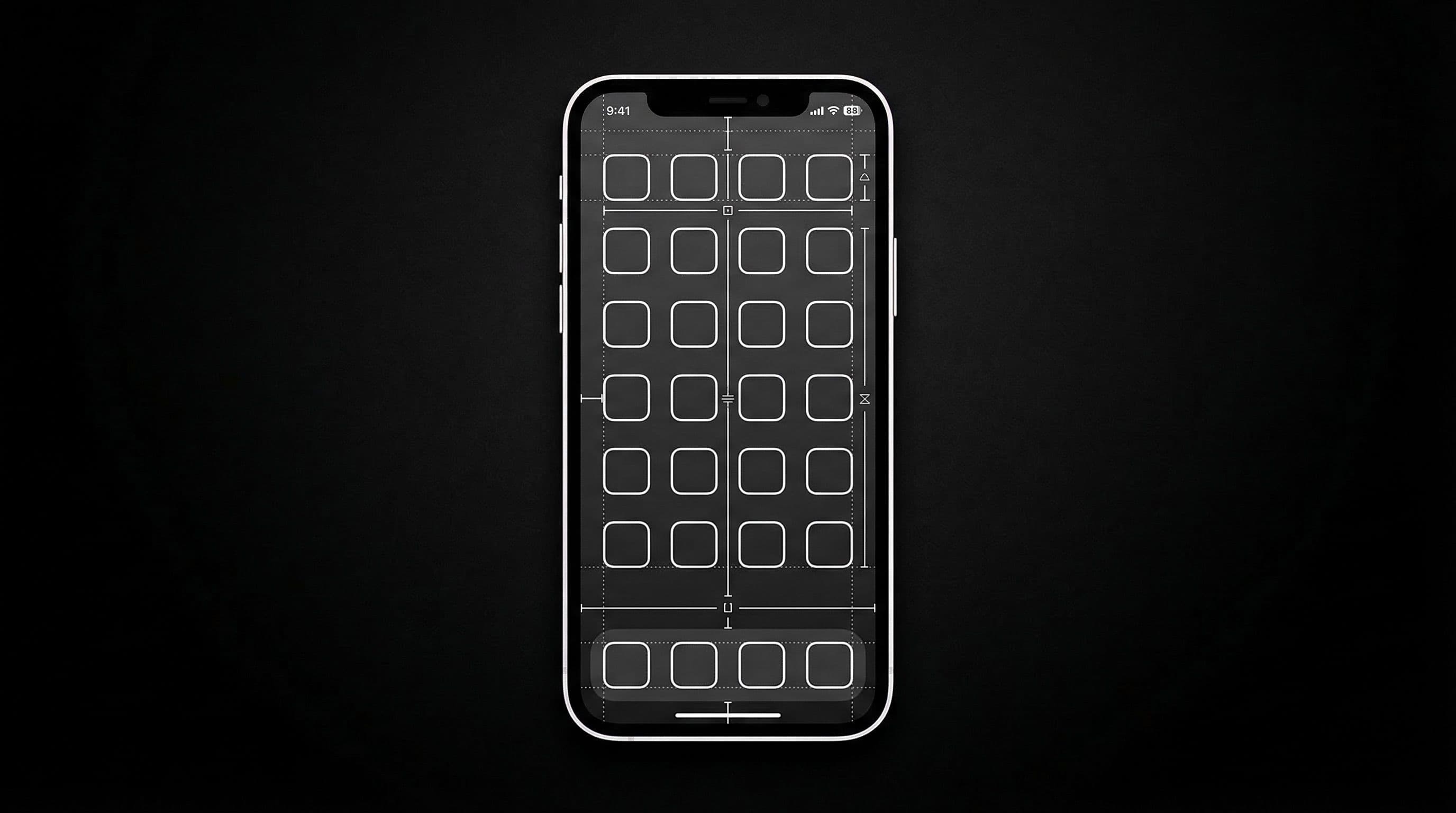
Why Great Art Often Fails Behind App Icons
You have probably experienced this: you find a stunning wallpaper, set it as your home screen, and immediately realize you cannot read half your app labels. Folder names disappear into busy backgrounds. Badge notification counts become invisible circles. Widget text gets swallowed by competing textures. The wallpaper looks amazing — but your phone becomes harder to use.
The root cause is almost never the wallpaper's artistic quality. The problem is composition mismatch — the wallpaper's visual intensity sits exactly where your icons need calm space. A portrait centered in the frame puts the character's face directly behind your 3rd and 4th rows of app icons, creating a readability nightmare.
The solution is not to settle for boring wallpapers. The solution is to design (or select) wallpapers where visual drama happens in zones that do not conflict with your interface layout. This is a learnable skill, and once you internalize it, you will never set an unusable wallpaper again.
Prompt Language That Produces Icon-Safe Compositions
The simplest fix is adding explicit spatial instructions to your AI prompts. Instead of "beautiful anime landscape, cinematic lighting," write "beautiful anime landscape, cinematic lighting, clean calm center zone for app icons, subject positioned in lower third, soft texture in middle rows, vertical phone wallpaper 9:19.5."
Key phrases that consistently produce icon-safe results: "clean center area" (keeps the middle calm), "negative space for icons" (AI models understand this means less detail), "subject in lower third" or "subject to the side" (moves visual weight away from icon rows), "low-detail top bar" (keeps status bar readable), and "soft gradient behind dock area" (protects bottom navigation).
You can combine these: "dark anime cityscape, character silhouette in lower right corner, calm center with soft lighting gradient, clean upper zone for clock, icon-safe composition throughout middle rows, vertical 9:19.5, no text." This single prompt addresses every zone of your typical phone layout.
Pro Tip: Map your phone's actual icon grid onto a reference image. Mark where each row sits, where your dock lives, where your clock appears, and where widgets go. When reviewing AI outputs, mentally overlay this map to instantly identify readability conflicts.
5 Icon-Friendly Design Patterns That Work Every Time
Pattern 1: Side-Framed Subject — character or focal object positioned on the left or right third, leaving the opposite 60 percent of the frame open and calm. Works for both anime and abstract styles. Pattern 2: Lower-Third Focal Point — all visual drama concentrated in the bottom third below your last icon row. The entire icon grid area stays calm.
Pattern 3: Gradient Background with Soft Center — a diagonal or radial gradient that is brightest at edges and softest (darkest or most neutral) in the center where icons sit. Pattern 4: Silhouette with Calm Sky — a dark subject silhouette at the bottom with an expansive sky or background above. Icons sit in the uniform sky zone. Pattern 5: Minimal Abstract with One Accent Cluster — mostly calm texture with a single cluster of visual interest positioned outside the main icon grid area.
These five patterns cover 90 percent of phone layouts across Android and iOS. Learn to recognize them in wallpapers and you can instantly tell whether an image will work on your phone before you even test it.
Step-by-Step Home Screen Readability Test
Step 1: Apply the wallpaper as your home screen. Step 2: Open your busiest home screen page — the one with the most app icons, folders, and widgets. Step 3: Hold your phone at normal viewing distance and check every single app label. Can you read each one without squinting or tilting the phone?
Step 4: Check notification badges — those small red circles with numbers. Can you see them clearly on every app? Step 5: Check folder names, which are often the hardest to read because the text is smaller. Step 6: Test at three brightness levels — indoor comfort, maximum outdoor brightness, and minimum low-light brightness.
Step 7: If any element fails at any brightness level, the wallpaper needs one of these fixes: darken the conflicting zone by 10-20 percent in a photo editor, switch to a wallpaper variant with calmer composition in that area, or reposition your icons to avoid the conflict zone. Do not accept "good enough" — readability issues compound daily frustration.
Pro Tip: Create two home screen pages — one dense (5x6 grid, folders, widgets) and one minimal (4x4 grid, no folders). Test every wallpaper against both layouts before approving it for your collection.
Build an Icon-Safe Collection in DreamPixel
Create a dedicated "Icon-Safe" folder in DreamPixel containing only wallpapers that passed every step of your readability test. When you want to change your home screen, browse only this folder — every option is guaranteed to work well with your icons.
Score each wallpaper monthly on a 1-5 scale for daily usability. Archive anything below 4. Over time, this folder becomes your personal library of proven home screen wallpapers that look beautiful and function flawlessly every day.
Icon Density Mapping for Better Composition
Before generating wallpapers, map your actual home screen layout. Take a screenshot and mark out where icons sit densely (main home page, dock area) versus where space is open (secondary pages, widget-only areas). Then generate wallpapers with matching calm zones — dense icon pages need wider negative space in the center and lower areas, while widget-only pages can handle more visual complexity.
This "density mapping" approach is far more effective than generic advice like "keep the center clean." Your phone layout is unique — a 4x6 grid with two rows of widgets has completely different calm-zone requirements than a 5x5 grid with no widgets. Create separate wallpaper sets for your dense and light layout pages instead of forcing one universal image to serve everything. Two targeted wallpapers always beat one compromised wallpaper.
Widget Compatibility Checklist
Widgets add another layer of complexity because they have their own backgrounds, text colors, and transparency levels that interact with your wallpaper in unpredictable ways. Before approving any wallpaper, test it with ALL your active widgets — not just one. Calendar widgets with white backgrounds can create a harsh rectangle that disrupts otherwise beautiful wallpapers. Weather widgets with translucent backgrounds can become unreadable against similarly-colored wallpaper areas.
Run this checklist: Does the calendar widget text remain readable? Is the weather widget visible at a glance? Does the music widget album art create a distracting color clash? Can you read the clock (if using a clock widget rather than the system clock)? If contrast drops on any widget, do NOT replace the wallpaper immediately — first try darkening only the widget zone using a mild overlay edit. This preserves 90 percent of the wallpaper's impact while fixing the specific readability problem.
Related Articles

How to Create Stunning Phone Wallpapers with AI — Complete Beginner Guide 2026
Learn a complete beginner workflow to create stunning AI phone wallpapers in 2026, from prompt writing to 4K export and clean icon-ready setup.
How to Use ChatGPT 4o to Generate Phone Wallpapers Step by Step
Follow a clear step-by-step ChatGPT 4o workflow to create, refine, and export phone wallpapers that look premium behind icons and widgets.
How to Write AI Prompts for Anime Wallpapers — Pro Tips & Examples
Write better anime wallpaper prompts with a clear framework, practical modifiers, and tested examples for cleaner composition and stronger phone readability.
FAQ
What is the easiest icon-safe composition pattern?
Side-framed subjects with calm center space — put the character or focal point on the left or right edge and leave the center 60 percent open. This pattern works with virtually every icon grid density and requires no post-editing.
Should I avoid detailed backgrounds completely?
No. Detail is fine in zones where icons do not sit — typically the edges and lower portion of the frame. The key is controlling WHERE detail lives, not eliminating it entirely. A wallpaper with beautiful details outside the icon zone looks better than a boring plain background.
What is the fastest fix for poor label readability?
Add a 10-15 percent opacity dark overlay specifically on the icon grid area using any free photo editor like Photopea or Snapseed. This preserves the wallpaper aesthetic while dramatically improving text contrast. Takes about 30 seconds per wallpaper.
Do icon-safe rules apply to lock screens too?
Yes, but lock screens have fewer conflict zones — mainly the clock area at top and notification text at bottom. The middle of lock screens is usually clear, so you can use more dramatic compositions than on home screens.
How many icon-safe wallpapers should I keep in rotation?
Keep 6 to 10 tested wallpapers in your icon-safe collection. This gives you enough variety for weekly rotation without overwhelming your choices. Each one should be guaranteed to work, so you can switch confidently without re-testing every time.
Download free wallpapers at DreamPixel
Back to all articles