How to Create Stunning Phone Wallpapers with AI — Complete Beginner Guide 2026
Learn a complete beginner workflow to create stunning AI phone wallpapers in 2026, from prompt writing to 4K export and clean icon-ready setup.

Founder & Lead Designer at DreamPixel Studio
Why This Guide Matters if You Love Phone Aesthetics
Knowing how to create stunning phone wallpapers with AI gives you complete control over style, mood, and color direction. Instead of scrolling through hundreds of generic downloads hoping something fits your phone, you generate exactly what you want — the right aspect ratio, the right color palette, the right composition for your specific icon layout.
The best part is that the barrier to entry has completely disappeared. In 2026, you do not need design skills, expensive software, or hours of tutorial-watching. A clear prompt, a free or low-cost AI tool, and about 15 minutes of focused work will produce wallpapers that look better than 90 percent of what you find on wallpaper apps.
This guide walks you through the entire process from first prompt to final phone setup, with real examples you can copy and use immediately.
Step 1: Pick the Right Tool Stack Before You Write Prompts
Start with one generator and one upscaler — that is it. A practical beginner stack is ChatGPT 4o for prompt iteration, Midjourney or DALL-E 3 for image generation, and Upscayl (free, open source) for final 4K upscaling. This three-tool combo covers ideation, creation, and polishing without overwhelming you with options.
If you want to stay completely free, try Leonardo AI or Playground AI for generation and Upscayl for upscaling. If you want maximum creative control and do not mind a steeper learning curve, Stable Diffusion with ComfyUI gives you the most flexibility. The key is committing to one stack and learning it well rather than bouncing between five tools and mastering none.
Create a simple notes document where you save your best-performing prompt fragments. After a few sessions, this document becomes your personal prompt library — far more valuable than any generic prompt list you find online, because every entry is proven to work for your specific style.
Pro Tip: Bookmark your prompt notes document on your phone too. When inspiration strikes during your commute or lunch break, you can draft new prompt ideas and test them when you get home.
Step 2: Write a Prompt That Controls Composition, Not Just Subject
This is where 80 percent of beginners go wrong. Most people write prompts like "beautiful sunset over mountains" and wonder why the result looks amazing as art but terrible as a phone wallpaper. The issue is that they described the subject but ignored composition — which is the single most important factor for phone wallpaper usability.
Every wallpaper prompt should include six elements: subject, camera framing, lighting direction, color palette, style reference, and aspect ratio. Here is a real prompt that covers all six: "cyberpunk koi fish with neon blue rim lighting, centered composition, deep black background, clean negative space in upper third for icons, cinematic dramatic light from below, ultra-detailed digital painting, vertical 9:19.5 aspect ratio."
The phrase "clean negative space in upper third for icons" is the secret ingredient. It tells the AI to leave a calm zone where your app grid will live, which is the difference between pretty art and a usable daily wallpaper. Add this kind of composition instruction to every prompt you write.
Step 3: Generate in Batches and Score Results Fast
Generate 8 to 12 variations per idea — not 1, not 50. Eight gives you enough variety to find strong candidates without drowning in mediocre outputs. Score each image immediately using a simple 1-to-5 system: 5 means "instant favorite, icon-safe, great colors," 1 means "delete now."
Keep only images scoring 4 or 5. Everything else gets deleted immediately, no exceptions. This sounds harsh, but it is the fastest way to develop your eye for quality and prevent your device from filling up with "maybe I will use this someday" images that you never touch again.
Label your keepers with simple tags: "icon-safe" (works for home screen), "lock-only" (too busy for icons but great for lock screen), "needs-upscale" (good composition but low resolution), and "archive" (interesting style but not for current rotation). This tagging system makes your collection immediately usable.
Step 4: Upscale to 4K and Prepare Lock and Home Variants
After selecting your winners, upscale every keeper to at least 2160x3840 for modern phones. Upscayl is the easiest free option — drag in your image, select the "UltraSharp" model, set 4x scaling, and export. The entire process takes about 30 seconds per image.
Then create two variants from each upscaled image: one dramatic version for your lock screen (keep all the visual intensity), and one calmer version for your home screen where you add a subtle dark gradient overlay in the area where your app icons will sit. You can do this gradient overlay in any free photo editor like Photopea or even Snapseed on your phone.
This two-variant approach is what separates casual wallpaper users from people with genuinely premium phone setups. Your lock screen makes the first impression, your home screen makes the daily experience — they need different treatments.
Pro Tip: Add a 15-20 percent opacity dark gradient to the top quarter of home screen wallpapers. This makes your status bar icons and clock always readable without noticeably darkening the artwork.
Step 5: Real-World QA Before You Save to Favorites
Test every wallpaper in three conditions: low brightness indoors, maximum brightness outdoors, and dark mode. Check whether app labels, widget text, and your lock screen clock remain clearly readable in all three. If any condition fails, the wallpaper needs adjustment before it earns a spot in your rotation.
The most common failure is outdoor readability. A wallpaper that looks stunning at your desk can become completely illegible when you check your phone in sunlight. If you discover this problem, reduce the midtone brightness of the wallpaper by 10-15 percent in a photo editor — this usually fixes outdoor visibility without noticeably changing the indoor appearance.
This QA step takes about 2 minutes per wallpaper and is the difference between "my phone looks amazing in screenshots" and "my phone actually works well every day."
5 Concrete Prompt Starters for Immediate Use
Copy these directly into your AI tool of choice: 1) "minimal black marble with gold veins, soft spotlight from upper right, icon-safe negative space in center, vertical phone wallpaper 9:19.5, ultra detailed macro photography." 2) "anime rain street at night, purple-blue cinematic neon glow, silhouette walking away, high contrast, clean upper zone, vertical 9:19.5."
3) "AMOLED mountain silhouette, full moon with silver haze, true black sky, ultra-clean minimalist composition, vertical phone wallpaper." 4) "retro-futuristic sunset skyline, synthwave color gradient, grain-free, balanced warm-to-dark transition, lock-screen friendly vertical." 5) "botanical illustration on aged paper texture, muted sage green and warm beige, calm aesthetic, open center for icon readability, vertical 9:19.5."
Start with these, then modify the subject and color palette while keeping the composition instructions intact. After 2-3 sessions, you will develop your own prompt style that consistently produces wallpapers matching your taste.
Build Your Weekly Wallpaper Workflow with DreamPixel
Create one themed set per week using this routine: Monday brainstorm prompts, Tuesday generate and score, Wednesday upscale and create variants, Thursday test on your actual phone, and Friday finalize your rotation for the week. This steady rhythm builds a premium personal collection without marathon sessions.
Save your top exports in DreamPixel organized by mood — energetic, calm, cinematic, minimal. When you want to change your wallpaper, you pick a mood instead of scrolling through an unorganized gallery. Over a month, this system produces 15-20 high-quality, tested wallpapers that all genuinely work on your phone.
Prompt Refinement Ladder Beginners Can Follow
Most beginners write one prompt, get a mediocre result, and either accept it or start over from scratch. A much better approach is the four-pass refinement ladder. Pass 1 (Base): write the core concept — subject, mood, style. Pass 2 (Composition): add phone-specific instructions — vertical 9:20, icon-safe zones, subject placement in lower third. Pass 3 (Readability): specify contrast, negative space, and dark/calm areas for icons. Pass 4 (Polish): add final details — lighting modifiers, color temperature, texture quality.
After each pass, generate and evaluate honestly. Log one sentence describing what improved and what still fails. This structured approach builds your prompt engineering skill exponentially faster than random tweaking because you learn which refinement levels have the most impact. Most people discover that Pass 2 (composition instructions) creates the biggest quality jump — adding "vertical 9:20, subject in lower third" transforms random art into phone-ready wallpapers.
Weekly Production Routine for Consistent Output
Treat wallpaper generation like a creative production schedule, not a random hobby. Monday: generate 10-15 raw concept images using varied prompts. Tuesday: shortlist the top 3-5 images based on first impression, composition, and phone-readiness. Wednesday: upscale shortlisted images to phone resolution and create lock/home crop variants. Thursday: apply each variant to your actual phone and run the readability QA check (icon labels visible, clock readable, gradients smooth). Friday: publish your top-performing set to your favorites folder and archive everything else.
This routine creates momentum without burnout because each day has a specific, manageable task. Over four weeks, your quality baseline rises measurably — not because you are more talented, but because the weekly cycle forces you to evaluate, compare, and improve. The Friday "publish or archive" decision is the critical moment: it training your taste by making you choose the genuine winner from each week's batch.
Related Articles
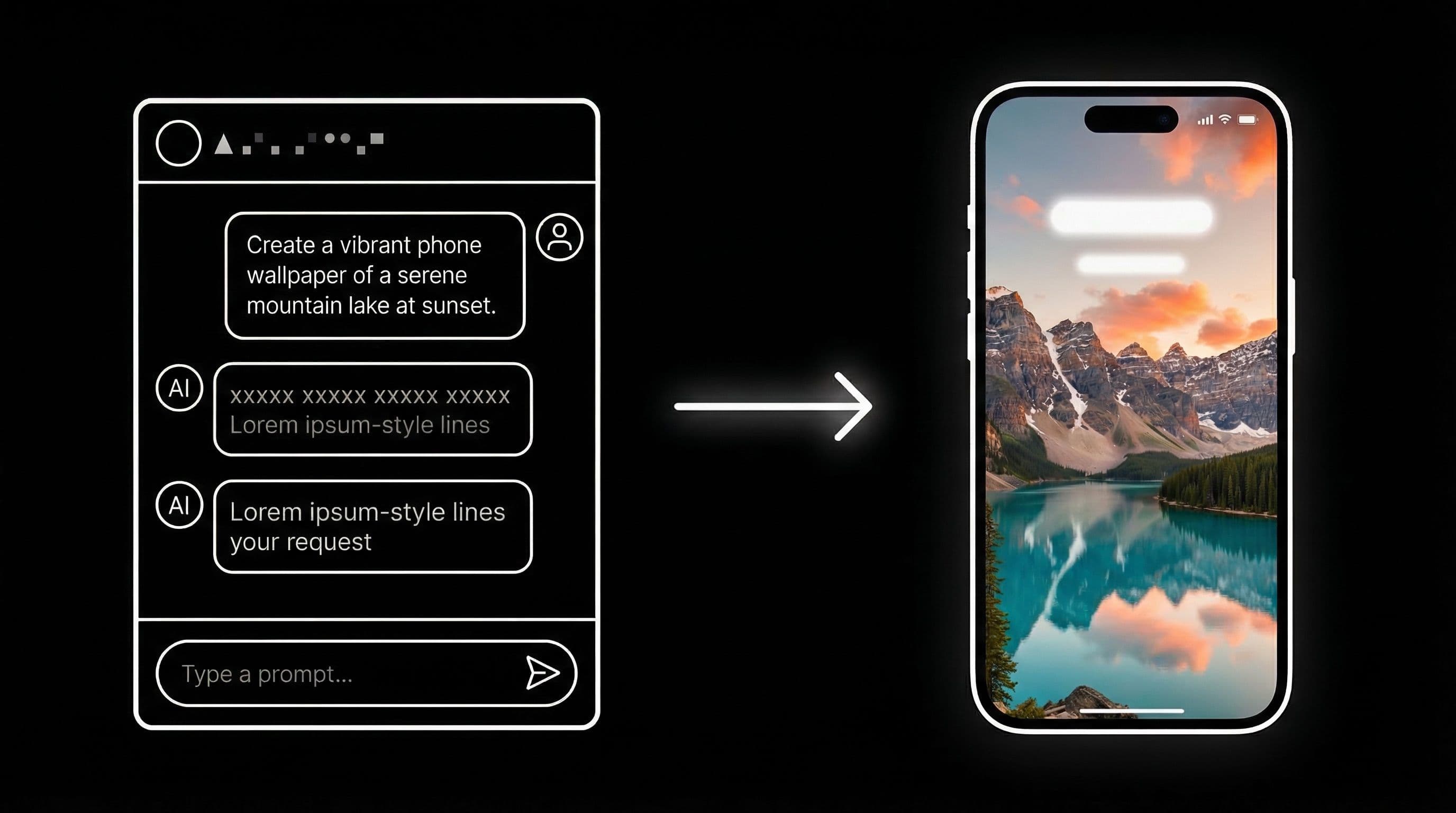
How to Use ChatGPT 4o to Generate Phone Wallpapers Step by Step
Follow a clear step-by-step ChatGPT 4o workflow to create, refine, and export phone wallpapers that look premium behind icons and widgets.
How to Write AI Prompts for Anime Wallpapers — Pro Tips & Examples
Write better anime wallpaper prompts with a clear framework, practical modifiers, and tested examples for cleaner composition and stronger phone readability.
50 Ready-to-Use AI Wallpaper Prompts for Every Aesthetic Style
Use 50 ready-to-use AI wallpaper prompts with exact copy-paste lines across AMOLED, anime, minimal, nature, cyberpunk, and retro styles for better phone results.
FAQ
Which AI tool is best for beginners creating wallpapers?
Start with ChatGPT 4o for prompt crafting plus DALL-E 3 or Leonardo AI for generation — both are beginner-friendly with minimal setup. Add Upscayl (free) for 4K upscaling. This three-tool stack covers everything without complexity.
What resolution should I export for modern phones?
Use at least 2160x3840 (4K) for phones like Samsung S24 Ultra, Pixel 9 Pro, or iPhone 16 Pro Max. For standard 1080p phones, 1080x2400 is sufficient but higher resolution gives you more cropping flexibility.
How many variations should I generate per idea?
Generate 8 to 12 per concept. Fewer than 8 limits your options, more than 12 creates decision fatigue without meaningful quality improvement. Keep only images scoring 4 or 5 on your rating scale.
Do I need separate lock and home versions?
Yes. Lock screens can handle dramatic, bright, and busy compositions because they only need to display a clock and notifications. Home screens need calmer center zones where your 20-30 app icons must remain readable. One wallpaper rarely serves both purposes well.
How often should I update my wallpaper packs?
Weekly creation with monthly rotation works well. Create one new set each week, test it, and at the end of the month review which wallpapers survived daily use. Archive the rest and keep only proven favorites.
Download free wallpapers at DreamPixel
Back to all articles