How to Set 4K Wallpaper on Samsung Galaxy Without It Looking Blurry
Set 4K wallpaper on Samsung Galaxy without blur by using correct resolution, crop workflow, gallery settings, and lock/home optimization tips.

Founder & Lead Designer at DreamPixel Studio
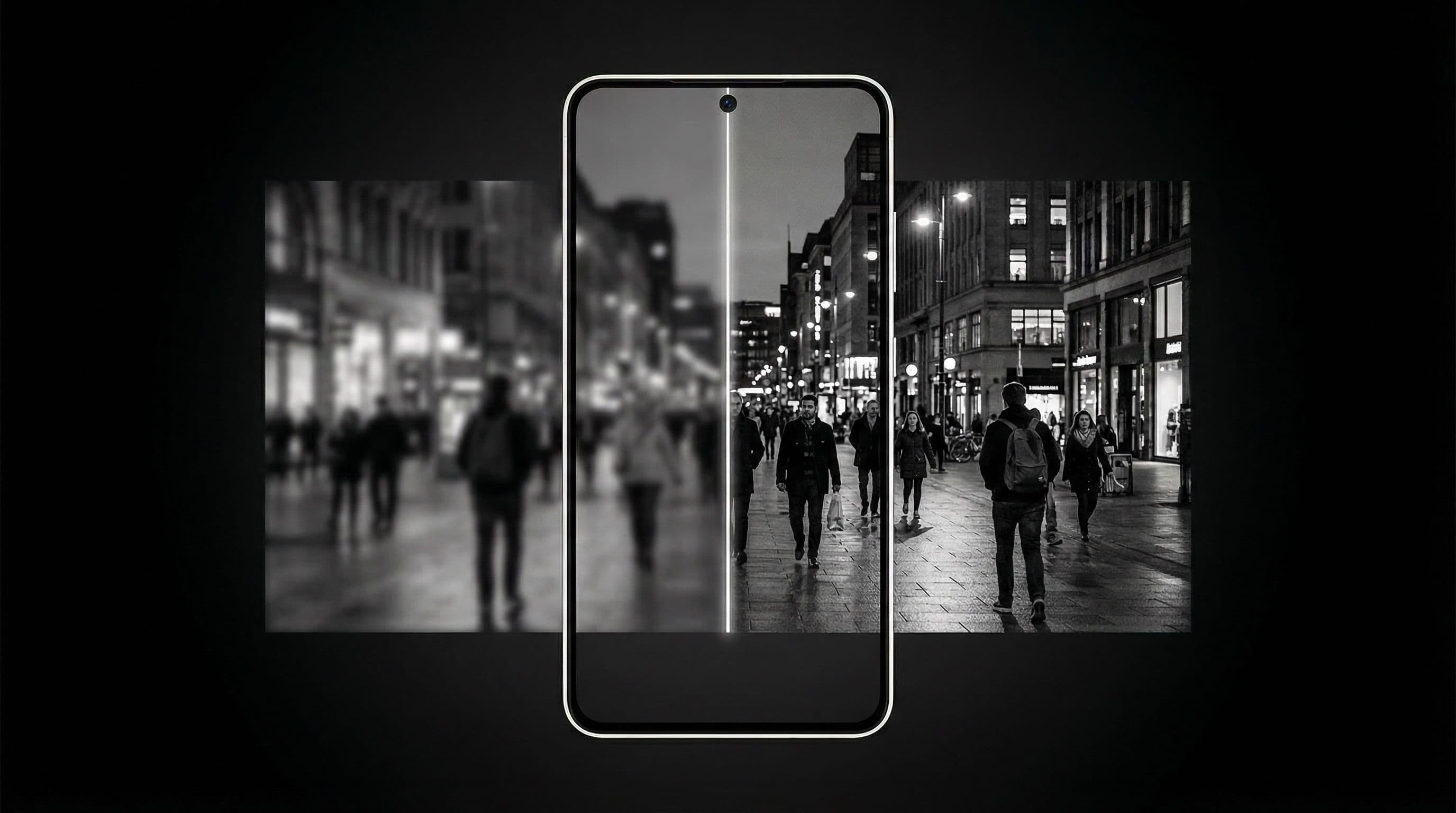
Why 4K Wallpapers Sometimes Look Blurry on Samsung Galaxy
You downloaded a "4K wallpaper," applied it to your Galaxy phone, and it looks... soft. Maybe even blurry. This is one of the most frustrating phone customization experiences, but the cause is almost never your phone's screen. Samsung Galaxy displays are among the sharpest in the industry. The blur happens in the pipeline between downloading the image and seeing it on screen.
Cause 1: Compressed source files. Many websites and apps that advertise "4K wallpapers" actually serve compressed versions to save bandwidth. The image might be 3840x2160 in resolution, but if it has been JPEG-compressed to a small file size, it can look soft and lack fine detail even at technically correct dimensions. A genuinely sharp 4K wallpaper file should be at least 3-5 MB.
Cause 2: App re-encoding. Some wallpaper apps and social media platforms re-compress images when you download or save them. Instagram, Twitter, WhatsApp, and Facebook all significantly reduce image quality. Cause 3: Aggressive auto-cropping. When your wallpaper aspect ratio does not match your phone ratio, the system zooms into the center, effectively reducing the resolution you actually see on screen.
Choose Correct Resolution and Aspect Ratio First
Samsung Galaxy phones use varying resolutions: Galaxy S24 Ultra is 3120x1440, Galaxy S24 is 2340x1080, Galaxy A-series models range from 2400x1080 to 2340x1080. Your wallpaper should match or exceed your phone's native resolution. For flagship phones, aim for at least 1440x3120 pixels. For mid-range, 1080x2340 is sufficient.
Aspect ratio matters more than raw resolution. If your source image is a different aspect ratio than your phone, the wallpaper system crops to fit — and that crop can destroy your composition and reduce effective resolution. Samsung Galaxy phones typically use a 9:19.5 or 9:20 ratio. Pre-crop your wallpaper to this exact ratio before applying.
Quick test: if your source file is 3840x2160 (standard 4K 16:9), it will be heavily cropped to fit a 9:20 phone screen. You will lose approximately 40 percent of the original image. A 1440x3200 wallpaper specifically composed for phone screens will look SHARPER than a 3840x2160 desktop wallpaper that gets auto-cropped. Resolution is not everything — aspect ratio fit determines perceived sharpness.
Step-by-Step Samsung Gallery Apply Workflow
The Samsung Gallery app typically preserves better image quality than most third-party wallpaper apps. Here is the cleanest workflow: Step 1: Save your wallpaper image directly to your phone storage (not through a messaging app or social media download). Step 2: Open Samsung Gallery and navigate to the image.
Step 3: Tap the three-dot menu (⋮) and select "Set as wallpaper." Step 4: Choose Lock screen, Home screen, or Lock and Home screens. Step 5: During the crop preview, position your subject carefully. Do NOT over-zoom — zoom only enough to fill the screen without blank bars. Over-zooming reduces the effective resolution you see on screen.
Step 6: Preview the result with your icon grid visible. If icons are hard to read or the subject looks soft, try a different crop position or a higher-quality source file. The Samsung Gallery route consistently produces sharper results than installing random wallpaper apps that add their own compression layer.
Display and Enhancement Settings to Check
Samsung Galaxy S series phones with WQHD+ displays have a resolution setting in Settings > Display > Screen resolution. If this is set to HD+ or FHD+, your display is rendering at lower resolution regardless of wallpaper quality. Set to WQHD+ for maximum sharpness.
Also check "Motion smoothness" — set to Adaptive or Standard depending on preference, but note that this does not affect wallpaper sharpness directly. More relevantly, check if "Enhance video quality" or any image enhancement features are affecting non-video content. Some modes apply artificial sharpening that can make edges look halos or unnatural.
For home screen readability, use slightly darker wallpaper variants behind icon-heavy pages. Samsung One UI uses white icon labels by default — these can disappear against bright wallpapers. Consider enabling "Dark mode" for icons to automatically switch label colors, or use wallpapers with naturally darker center zones where icons sit.
Pro Tip: Keep one master PNG or high-quality WebP source file for every wallpaper you use. When you change launcher layout, icon pack, or widget configuration, you can re-crop from the master cleanly rather than re-compressing an already-compressed copy.
How to Diagnose Blur Quickly
The fastest diagnostic: apply the same wallpaper image through Samsung Gallery AND through whatever third-party app you normally use. If the Gallery version looks noticeably sharper, your third-party app is compressing the image during the apply process. Switch to Gallery for all future wallpaper applications.
Zoom-in test: after applying your wallpaper, take a screenshot, then zoom into edges and fine details in the screenshot. If edges look soft or you see JPEG artifacts (blocky color transitions), your source file is too compressed. Download a higher-quality version from the original source.
White text test: look at app labels against the wallpaper. If the labels look crisp and clear but the wallpaper behind them looks soft, the wallpaper file quality is the problem. If both labels AND wallpaper look soft, your display resolution setting might be set too low.
Keep Samsung-Ready Masters with DreamPixel
Create a "Samsung Ready" folder in DreamPixel containing tested, high-resolution master files pre-cropped to your Galaxy phone's exact aspect ratio. These masters should be uncompressed PNG or high-quality WebP files, each confirmed to look sharp after applying through Samsung Gallery.
Keep the folder organized by style (dark, minimal, anime, aesthetic) so finding the right wallpaper is instant. Remove any compressed duplicates — they only create confusion when you accidentally apply a low-quality copy instead of the master. One clean folder of verified masters is worth more than 500 random downloads.
Samsung Model Ratio and Crop Planning Tips
Different Samsung Galaxy models have slightly different effective wallpaper behaviors even when they share the same resolution on paper. The Galaxy S24 Ultra (3120x1440) and Galaxy S24 (2340x1080) crop wallpapers differently because their aspect ratios and screen curvatures differ. The Galaxy A-series models have their own crop quirks. This means a wallpaper that looks perfectly framed on your S24 Ultra may cut off the subject on your friend's A54.
Solution: keep a small test pack with exactly 3-4 representative wallpapers per device profile you use. When you download a new batch of wallpapers, test apply one image from each style category and verify the exact crop behavior — where does it trim the top, bottom, and sides? Once you know your specific device's trim zones, you can pre-crop every future wallpaper to account for them, eliminating surprise subject cutting.
Quality Preservation Pipeline You Can Reuse
Build a standard quality pipeline and use it for EVERY new wallpaper: Step 1: Save the highest-quality source file to your phone storage (not through messaging apps). Step 2: Open in Samsung Gallery, crop to your phone's exact aspect ratio, and position the subject carefully. Step 3: Apply to lock screen, verify sharpness by zooming into a screenshot. Step 4: Apply separately to home screen, verify icon readability at multiple brightness levels. Step 5: Store the validated result in your "Samsung Ready" folder.
This five-step pipeline takes about 90 seconds per wallpaper and guarantees consistent quality output. The key discipline: never skip Step 3 (sharpness verification) or Step 4 (readability check). These are where 90 percent of wallpaper quality problems are caught. Once this pipeline becomes habit, you will never accidentally apply a blurry or unreadable wallpaper again.
Related Articles
Best Jujutsu Kaisen Wallpapers 2026 — Gojo, Sukuna & Yuji Itadori
Find the best Jujutsu Kaisen wallpapers 2026 with Gojo, Sukuna, and Yuji styles that look sharp on lock screen and home screen setups.
Best Solo Leveling (Sung Jin-woo) Wallpapers for Phone — 4K AMOLED
Build a dark premium phone aesthetic with Solo Leveling wallpapers 4K AMOLED featuring Sung Jin-woo shadow army scenes and high-contrast edits.
Best Frieren: Beyond Journey's End Wallpapers for Android & iPhone
Choose calm, magical Frieren wallpapers that fit Android and iPhone screens while keeping lock screen text readable and beautiful.
FAQ
Why is my 4K wallpaper blurry on Samsung Galaxy?
Most commonly because the source file is compressed (despite being labeled "4K"), or because the wallpaper app re-encoded the image during the apply process. A genuine 4K wallpaper file should be at least 3-5 MB. Compressed versions often look soft even at technically correct dimensions.
Should I set wallpaper through Gallery or third-party app?
Samsung Gallery consistently preserves better image quality than most third-party wallpaper apps. Third-party apps often add their own compression layer during the apply process. Use Gallery for sharpest results.
Does display resolution setting affect wallpaper sharpness?
Yes. On Samsung Galaxy S series phones with WQHD+ displays, if you set the resolution to HD+ or FHD+, everything on screen (including wallpapers) renders at lower resolution. Set to WQHD+ for maximum visual quality.
Is PNG better than JPG for wallpapers?
PNG preserves more detail and does not compress with quality loss, making it ideal as a master source file for editing and re-cropping. High-quality JPG (90%+ quality) also looks excellent for daily display. Keep PNG masters and use high-quality JPG/WebP for space-efficient storage.
How can I keep icons readable without blur tricks?
Use wallpapers with naturally calm center zones (dark gradients, atmospheric blur, simple textures) where icons sit. This provides clean readability without adding artificial blur effects. Choose wallpapers composed specifically for phone screens rather than cropping desktop wallpapers.
Download free wallpapers at DreamPixel
Back to all articles