How to Upscale AI Wallpapers to 4K Quality for Free
Learn a free upscaling workflow to convert AI wallpapers into clean 4K phone-ready files with better detail and less artifact noise.
Founder & Lead Designer at DreamPixel Studio
Why 4K Upscaling Matters Even on Mid-Range Phones
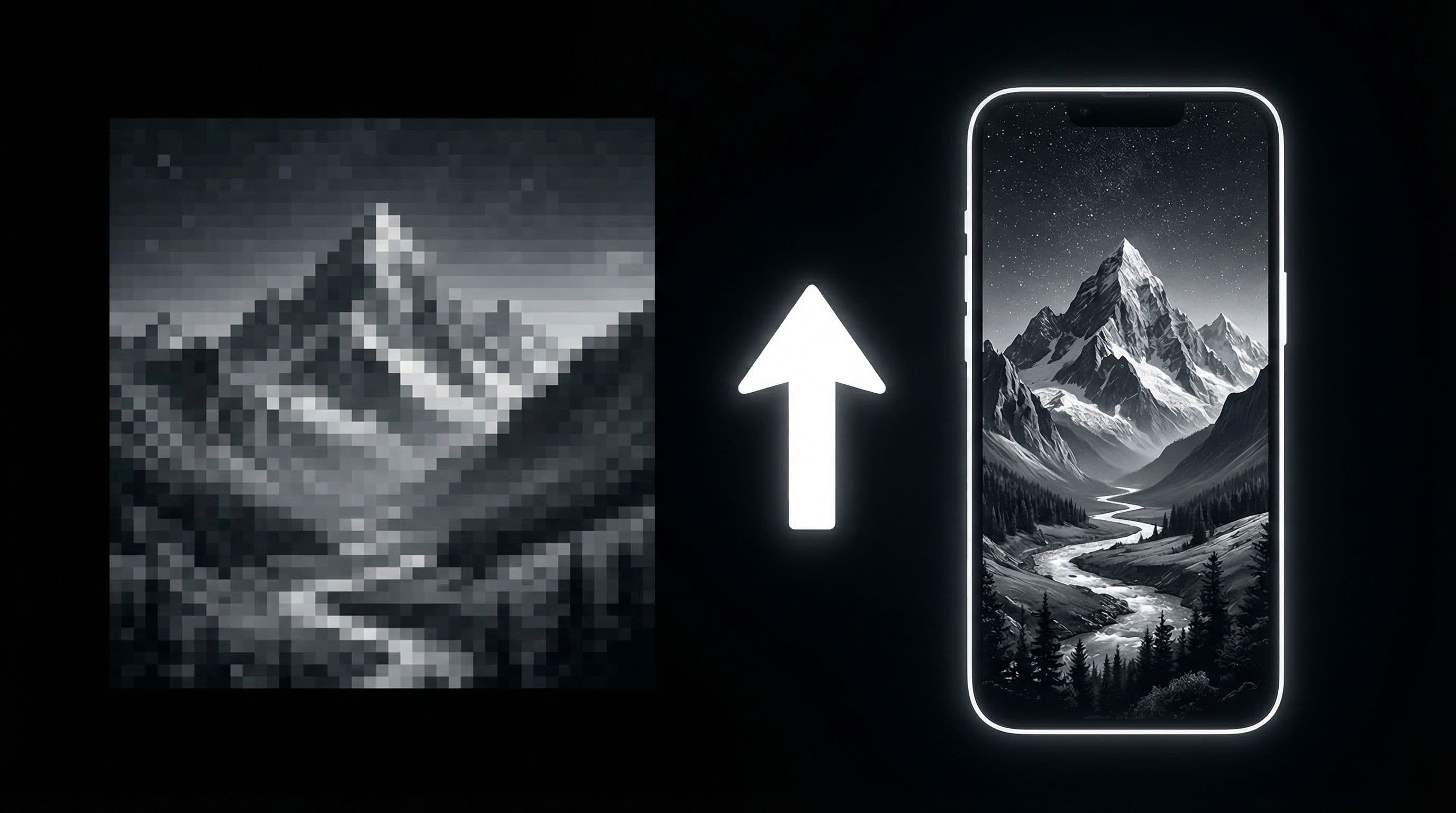
Here is what happens when you set a 512x512 AI-generated image as your phone wallpaper on a 1080x2400 display: the image gets stretched across 5 million pixels it was never designed to fill. Text on icons becomes harder to read because the wallpaper behind them is blurry. Gradient transitions that looked smooth at low resolution become visibly banded. And fine details like character hair, texture patterns, and lighting effects turn into mushy smears.
Upscaling to 4K (2160x3840 or higher) before applying fixes all of these issues, even if your phone does not have a 4K display. A higher-resolution source means sharper edges after your phone compresses and crops it, smoother gradients, and cleaner detail retention. Think of it like taking a photo with a good camera and then printing it smaller — the extra resolution translates to higher quality at the final viewing size.
The best part is that effective 4K upscaling is completely free in 2026. You do not need Photoshop, paid subscriptions, or a high-end computer. One free desktop tool handles everything.
Free Tools You Can Use Right Now
Upscayl is the best free upscaler for wallpaper work. It is open-source, runs on Windows, macOS, and Linux, and requires zero technical knowledge. You drag in an image, pick a model, and click upscale. The "UltraSharp" model works best for anime and illustrated wallpapers, while "RealESRGAN" handles photographic and nature images better.
If you want browser-based options, Clipdrop (free tier with limitations) and Bigjpg handle basic upscaling without installing anything. These are convenient for quick one-offs but Upscayl produces noticeably better results for detailed wallpaper art. For power users already running Stable Diffusion, the built-in "Extras" upscaler with ESRGAN models gives the most control.
The important rule: pick one upscaler and learn it well rather than bouncing between tools. Consistency in your upscaling pipeline means you can predict output quality reliably, which saves time and reduces wasted effort.
Pro Tip: Test your upscaler by processing a known good wallpaper at both 2x and 4x scaling, then compare results at 100 percent zoom. Some models add subtle sharpening artifacts at 4x that are invisible at 2x. Find the scaling factor that gives the cleanest result for your preferred art style.
Step-by-Step 4K Upscaling Workflow
Step 1: Select your best AI-generated image — the one that scored highest for composition and mood. Do not upscale rejects hoping the extra resolution will save them. Upscaling magnifies both quality and flaws. Step 2: Open Upscayl, choose the UltraSharp model for anime or RealESRGAN for photo-realistic images, and set the scale factor to 4x (or 2x if your source is already 1024px or larger).
Step 3: Check the output for artifacts — look specifically at hair edges, fabric folds, light transitions, and any area where two colors meet. If you see halos (bright outlines around dark edges), switch to a gentler model or reduce the scale factor. Step 4: If any noise appeared in dark zones, apply Upscayl's built-in denoising at a low setting (10-20 percent) and re-export.
Step 5: Create two variants — one for lock screen (full drama, no modifications) and one for home screen (add a 15 percent opacity dark gradient overlay on the icon zone using any photo editor). Step 6: Transfer both files to your phone and test them as actual wallpapers before adding to your collection.
Quality Checks That Catch Problems Before They Hit Your Phone
After upscaling, zoom to 100 percent and inspect four specific areas: 1) Character or subject edges — look for halos, jagged lines, or doubled outlines. 2) Gradient transitions — check sky gradients and color blends for visible banding or staircase patterns. 3) High-contrast borders — where bright meets dark, sharpening artifacts often appear as white or black edge lines. 4) Dark zones — look for introduced grain or noise in areas that should be pure black or smooth dark.
After visual inspection, the real test is on your phone. Apply the wallpaper and check: can you read every app label on your busiest home screen page? Is the lock screen clock clear at both low and high brightness? Does the wallpaper look clean in outdoor daylight, not just indoor lighting?
If any check fails, do not try to fix it with further processing — go back to the original file and rerun the upscale with adjusted settings. Stacking multiple processing steps degrades quality faster than starting clean.
Pro Tip: Save one archival PNG master (full 4K, no compression) and one compressed WebP delivery file. The PNG preserves maximum quality for future re-exports, while the WebP keeps file size small for your phone storage.
Store High-Quality Finals in DreamPixel
Upload only your final approved 4K outputs to your DreamPixel favorites. Keep drafts, rejected upscales, and intermediate versions in a separate archive folder or delete them entirely. Your active collection should contain only wallpapers that passed every quality and usability test.
Monthly cleanup keeps your library premium. At the end of each month, review your collection and archive any wallpaper you have not used in four weeks. This ensures that every time you open DreamPixel to switch your wallpaper, every option is genuinely great.
Artifact Debugging Guide for Free Upscalers
Free upscalers are powerful but imperfect. Here is how to diagnose and fix the three most common artifact types. Artifact 1: Crunchy edges — edges look overly sharp with haloing or white-line artifacts. Fix: reduce the sharpening/denoising strength in your upscaler settings before running again. If your tool does not have adjustable settings, try a different upscaling model (switch from "general" to "anime" or vice versa). Artifact 2: Gradient banding — smooth gradients show visible staircase-like color steps. Fix: use milder denoise settings and export at higher JPEG quality (95 percent or higher). Banding is often caused by the export step, not the upscaler.
Artifact 3: Over-smoothing — faces or detailed areas look plastic and artificial after upscaling. Fix: reduce the upscaling factor (try 2x instead of 4x, then resize in a photo editor). Larger upscaling factors amplify AI interpretation artifacts. Always keep your original pre-upscale file so you can compare before-and-after objectively. Solve one artifact class at a time rather than making multiple setting changes simultaneously — this way, you learn which specific fix resolved each problem.
File Management Rules for 4K Wallpaper Libraries
Naming convention is not optional — it is essential infrastructure. Use this format: "[style]-[device]-[screen].ext" — for example, "cyberpunk-s24ultra-lock.jpg" and "cyberpunk-s24ultra-home.jpg." This naming tells you the aesthetic, the target device, and the screen purpose at a glance. When you have 100+ wallpapers, this naming convention prevents the frustrating experience of applying a desktop-cropped wallpaper to your phone or using a lock screen variant on your home screen.
Folder structure: keep three separate folders per aesthetic: "sources" (original AI-generated output, unmodified), "upscaled" (4K upscaled masters, highest available quality), and "phone-ready" (final exports cropped and compressed for your specific phone). This three-tier structure prevents quality loss from accidental re-exports and lets you regenerate phone-ready variants whenever you change phones or screen preferences. Organization is part of image quality, not just convenience.
Related Articles
Best Solo Leveling (Sung Jin-woo) Wallpapers for Phone — 4K AMOLED
Build a dark premium phone aesthetic with Solo Leveling wallpapers 4K AMOLED featuring Sung Jin-woo shadow army scenes and high-contrast edits.
Best Naruto & Itachi Uchiha Aesthetic Wallpapers for 4K Phones
Get the best Naruto and Itachi aesthetic wallpapers in 4K with practical tips for creating a clean and dramatic lock/home setup.
Best Jujutsu Kaisen Wallpapers 2026 — Gojo, Sukuna & Yuji Itadori
Find the best Jujutsu Kaisen wallpapers 2026 with Gojo, Sukuna, and Yuji styles that look sharp on lock screen and home screen setups.
FAQ
What free upscaler is easiest for beginners?
Upscayl desktop app — it requires zero configuration, has a simple drag-and-drop interface, and produces professional-quality results. Download it, open it, drag in your wallpaper, select UltraSharp model, and click Upscale. That is literally the entire process.
Should I upscale before or after cropping for my phone?
Always upscale first, then crop. Upscaling a pre-cropped image gives you fewer pixels to work with, and the upscaler has less context to make intelligent detail reconstruction decisions. Start with the highest-quality source, upscale it, then crop to your phone aspect ratio.
Which output format gives the best quality?
Save a lossless PNG as your archive master and export a high-quality WebP (quality 90+) or JPEG (quality 95+) for your phone. WebP at quality 90 gives excellent visual quality at roughly half the file size of equivalent JPEG, making it the best format for phone storage.
How do I detect and avoid over-sharpening artifacts?
Zoom to 100 percent and look for white or bright outlines around dark edges (halos), an unnaturally "crispy" texture on skin or fabric, or visible grid patterns in smooth gradient areas. If you see these, try a different upscaling model or reduce the scale factor from 4x to 2x.
Do I need different upscale settings for lock and home screens?
No — upscale once at maximum quality, then create variant crops. Lock screen version keeps all visual intensity. Home screen version gets a subtle gradient overlay for icon readability. The upscaling step itself should be identical for both.
Download free wallpapers at DreamPixel
Back to all articles