How to Crop & Resize Wallpapers for Phone Without Losing Quality
Crop and resize phone wallpapers without quality loss using aspect-ratio planning, non-destructive edits, and high-quality export settings.

Founder & Lead Designer at DreamPixel Studio
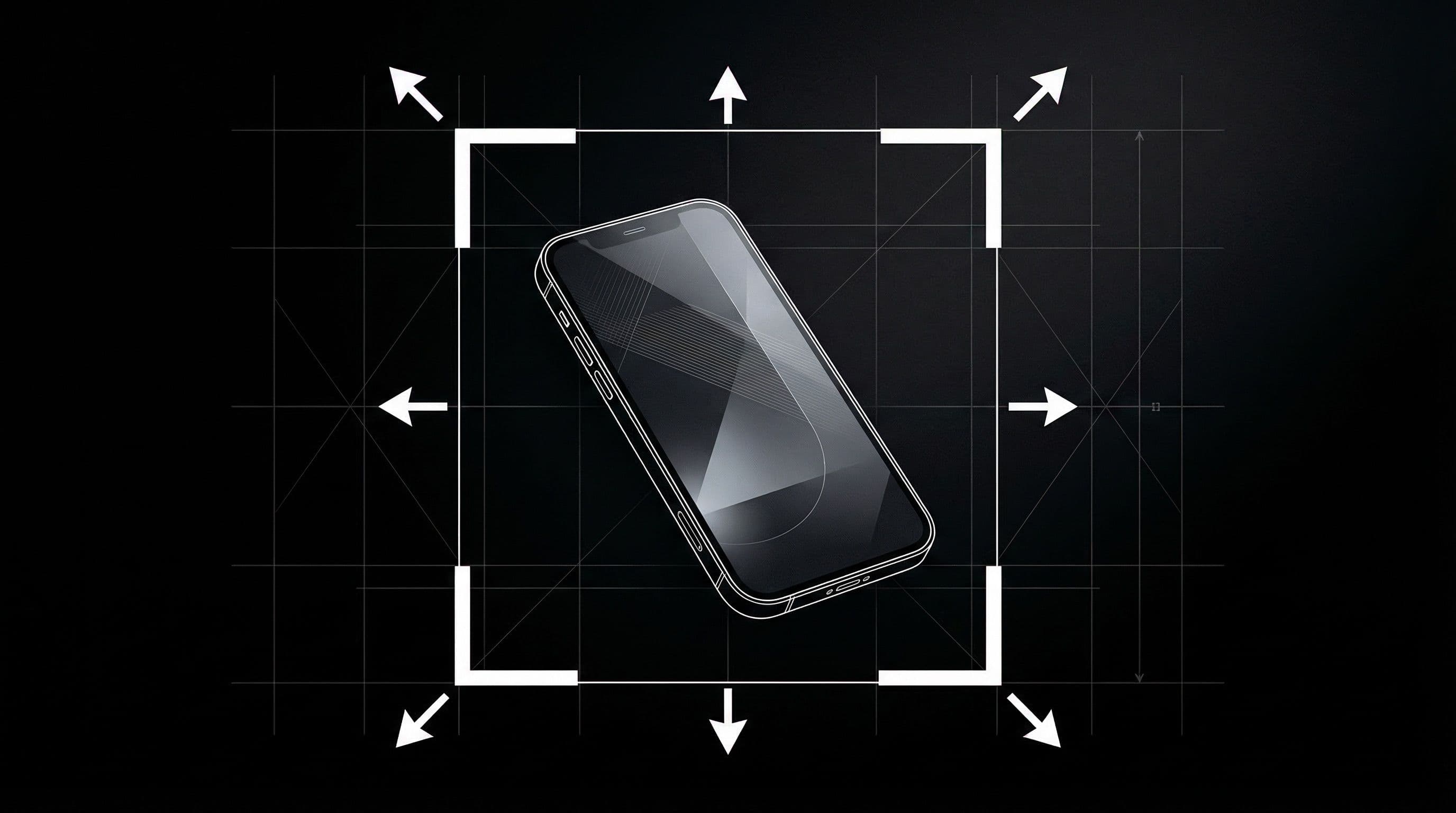
Why Wallpaper Quality Drops During Crop and Resize
Every time you open an image, edit it, and save it as a JPEG, a small amount of detail is lost. This is called "generation loss" — each save cycle applies new compression, and quality degrades incrementally. Resize a wallpaper three times with JPEG saves between each edit, and the cumulative quality loss becomes visible: soft edges, color banding in gradients, and blocky artifacts in dark areas.
Cropping reduces quality differently. When you crop, you are literally removing pixels from the image. A 4000x6000 wallpaper cropped to show only the center third becomes a 1333x2000 image — that might not even fill your phone screen at native resolution. If you then stretch that cropped section to fill the screen, the phone interpolates missing pixels, creating visible softness.
The third culprit is mismatched aspect ratio. Cropping a 16:9 desktop wallpaper to fit a 9:20 phone ratio removes approximately 40 percent of the original image. All that lost area means the subject you carefully positioned is now either partially cut off or awkwardly centered.
Step 1: Match Device Ratio Before Any Editing
Before you do ANYTHING else — before adjusting brightness, before repositioning the subject, before adding overlays — set your crop tool to your phone's exact aspect ratio. This single step prevents the most common quality problems. Your phone ratio is likely one of these: 9:19.5, 9:20, 9:21, or 1:2.
How to find your exact ratio: go to Settings > Display > Screen resolution and note the pixel dimensions (for example, 1440x3120). Divide the larger number by the smaller (3120 ÷ 1440 = 2.167). Your wallpaper should have this same ratio. Most photo editors let you set a custom crop ratio using the pixel dimensions directly.
Once the crop frame matches your phone, position your subject within it. This gives you exact control over what appears on screen — no surprises, no auto-cropping by the phone, no accidental subject cutting. The final export will be exactly what you see in the editor.
Step 2: Use Non-Destructive Editing Workflow
The golden rule: never edit your only copy of an image. Keep the original master file untouched and create all variants from it. If you need to make a different crop, a brightness adjustment, or a version for a different phone — go back to the master and create a new export. Never edit an export.
If you use photo editing apps on your phone (Snapseed, Lightroom Mobile, Photoshop Express), use their non-destructive editing features. These apps store your edits as instructions rather than permanently baking them into the pixels. You can adjust, undo, and re-export without cumulative quality loss.
When creating lock and home screen variants from the same source: make both from the master file, not one from the other. Creating a home screen variant by editing your lock screen export adds one unnecessary generation of compression. Both variants exported independently from the master will be sharper.
Step 3: Export Settings That Preserve Detail
JPEG quality: export at 92-95 percent quality minimum. Below 90 percent, compression artifacts become visible on phone screens — especially in gradients, dark areas, and fine text. Higher quality means larger file size, but modern phones have plenty of storage. A 5 MB wallpaper file versus a 1 MB file is not worth the quality sacrifice.
Resolution: export at or above your phone's native screen resolution. Do NOT export at exactly the native resolution if you plan to let the phone handle cropping — export slightly larger (10-15 percent) to give the phone room to adjust without upscaling. If you have already pre-cropped to the exact ratio, export at exactly the native resolution.
Format choice: PNG for archival masters (lossless, larger file size). JPEG at 92-95 percent quality for daily-use phone wallpapers (excellent quality, reasonable file size). WebP at high quality for the best size-to-quality ratio if your workflow supports it. Avoid GIF, BMP, or heavily compressed JPEG (below 80 percent quality).
Pro Tip: Name your exported files with the ratio, resolution, and screen target in the filename. For example: "cyberpunk-alley-9x20-1440x3200-HOME.jpg" and "cyberpunk-alley-9x20-1440x3200-LOCK.jpg." This naming convention prevents you from accidentally applying the wrong crop variant months later.
Step 4: Real-Device Validation
Desktop and phone monitors display images differently. An edit that looks perfect on your computer screen may reveal soft edges, color shifts, or contrast issues on your phone's OLED display. Always validate the final result on the actual device where the wallpaper will be used.
Validation checklist: Apply the wallpaper to your phone. Check edges and fine details — are they crisp or soft? Check gradients — do they show smooth transitions or visible banding (staircase-like color steps)? Check icon readability at normal, low, and high brightness. If any check fails, return to your master file, adjust, and re-export with higher quality settings.
If you see artifacts that were not visible during editing: your export compression is too aggressive. Increase JPEG quality to 95 percent or switch to PNG. If colors look different: check your phone's display color mode (Vivid vs. Natural) and adjust your edit to account for how your specific phone renders color.
Store Master and Delivery Variants with DreamPixel
Create two DreamPixel folders: "Masters" (original high-quality source files, PNG or maximum-quality exports) and "Phone Ready" (final exports pre-cropped and optimized for your specific phone). The Masters folder is your insurance — it lets you regenerate any variant at any time without quality loss.
Keep the Phone Ready folder lean: only tested, validated wallpapers that look sharp on your device. Prune low-quality exports aggressively — any file that showed softness or artifacts during validation gets deleted. Your Phone Ready folder should contain zero compromises.
Master File Policy for Long-Term Quality
This is the single most important rule in wallpaper file management: NEVER overwrite your master source file with a compressed export. Every new crop, every brightness adjustment, every phone-specific variant should start from the original master. If you crop a master to create a lock screen version, then later crop that lock screen version to create a home screen version, you have introduced one unnecessary generation of quality loss.
Keep masters in a dedicated "Masters" folder that you treat as read-only. Use clearly labeled derivative naming: "cyberpunk-master.png" → "cyberpunk-s24-lock.jpg" and "cyberpunk-s24-home.jpg." This naming makes it obvious which file is the sacred master and which are disposable derivatives that can always be regenerated. Master-file discipline prevents the invisible, cumulative quality decay that slowly makes your entire wallpaper collection look soft over months of repeated editing.
Export Validation Matrix for Clean Deliverables
Before declaring any wallpaper export "done," validate it against four checks. Check 1: Detail Sharpness — zoom into fine details on your phone screen (not the editor). Are edges crisp? Any visible JPEG blocking? Check 2: Gradient Smoothness — look at sky gradients and color transitions. Any visible banding (staircase steps)? Check 3: Icon Readability — apply the wallpaper and verify all icon labels are instantly readable without concentration. Check 4: Crop Alignment — is the subject positioned exactly where you intended, with no unexpected trim at edges?
Reject any export that fails even ONE of these four checks. The matrix creates consistent, reproducible quality standards across every wallpaper you process — whether it is your first wallpaper this month or your fiftieth. Standardized validation eliminates the subjectivity trap where "good enough" gradually becomes your new standard and overall collection quality drifts downward without you noticing.
Related Articles
Best Jujutsu Kaisen Wallpapers 2026 — Gojo, Sukuna & Yuji Itadori
Find the best Jujutsu Kaisen wallpapers 2026 with Gojo, Sukuna, and Yuji styles that look sharp on lock screen and home screen setups.
Best Solo Leveling (Sung Jin-woo) Wallpapers for Phone — 4K AMOLED
Build a dark premium phone aesthetic with Solo Leveling wallpapers 4K AMOLED featuring Sung Jin-woo shadow army scenes and high-contrast edits.
Best Frieren: Beyond Journey's End Wallpapers for Android & iPhone
Choose calm, magical Frieren wallpapers that fit Android and iPhone screens while keeping lock screen text readable and beautiful.
FAQ
What causes wallpaper quality loss during resizing?
Three main causes: JPEG generation loss from repeated saves (each save compresses again and removes detail), pixel removal from excessive cropping (less image data means lower resolution), and aspect ratio mismatch (forcing a 16:9 image into a 9:20 phone ratio removes 40 percent of the image).
Should I crop before or after resizing?
Set your crop tool to match your phone aspect ratio FIRST, position your subject within the crop frame, then resize to your final target resolution. Ratio first, then resolution. This order preserves the most detail and prevents unexpected subject cutting.
Is JPG or WebP better for wallpaper exports?
Both work well at high quality settings (92%+ for JPEG, high quality for WebP). WebP generally produces smaller file sizes at equivalent visual quality. Keep a lossless PNG or maximum-quality master for future re-edits regardless of which format you use for phone delivery.
How do I avoid over-sharpened wallpaper artifacts?
Use sharpening sparingly — if the sharpening effect is visible to your eye, it is probably too strong. Apply mild unsharp mask (amount 30-50, radius 0.5-1.0) and always validate on your actual phone screen. OLED displays exaggerate sharpening artifacts that are invisible on computer monitors.
Do I need separate lock and home exports?
Yes. Lock screens can show full dramatic detail, while home screens need calmer center zones for icon readability. Creating two exports from the same master (different crops or brightness adjustments) takes 2 minutes and dramatically improves daily usability.
Download free wallpapers at DreamPixel
Back to all articles