Best AI Prompts for Dark AMOLED Wallpapers — Copy & Paste Ready
Use copy-paste ready prompt formulas to generate dark AMOLED wallpapers with cleaner contrast, better icon visibility, and premium lock screen depth.

Founder & Lead Designer at DreamPixel Studio
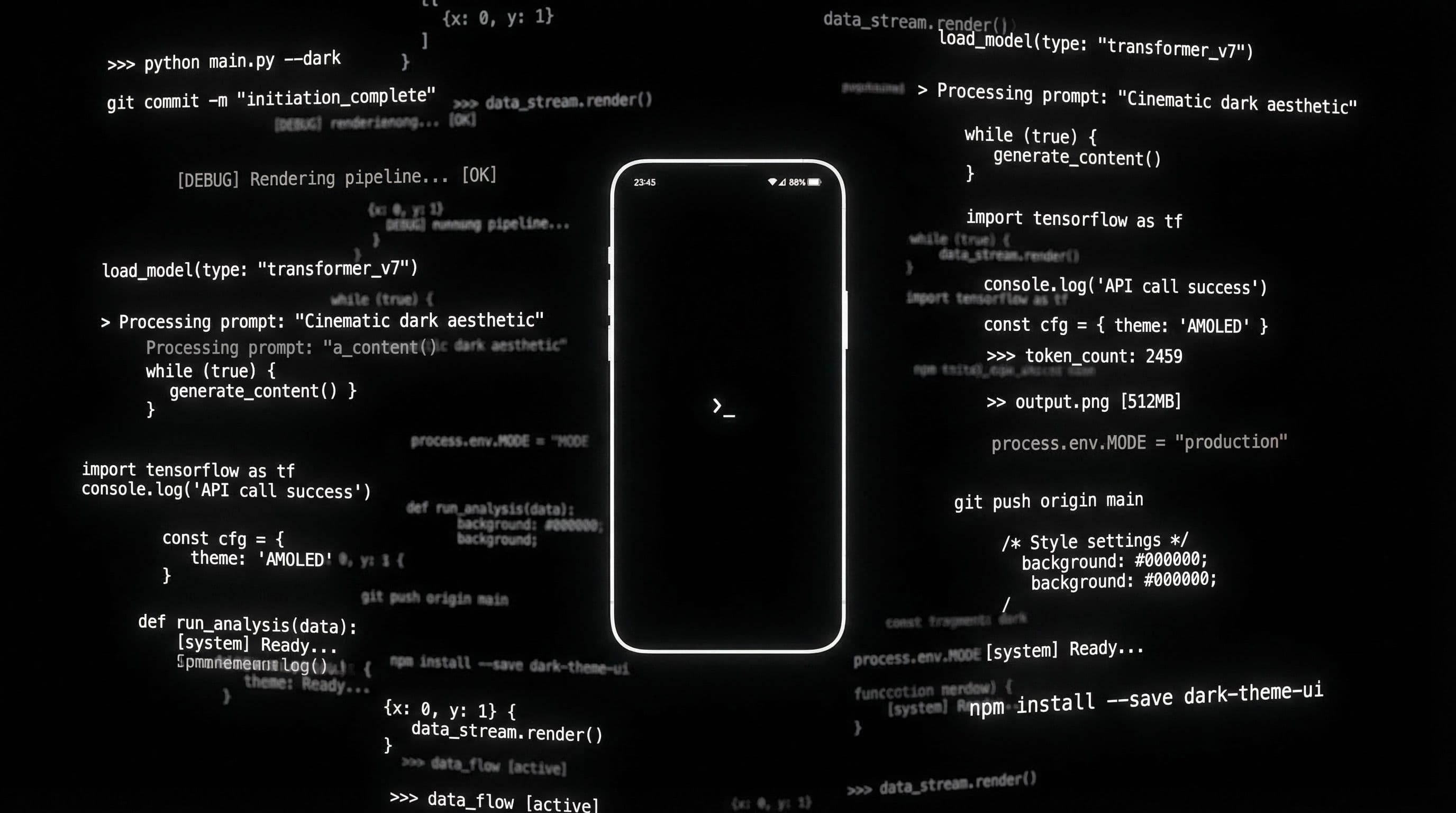
What Makes a Dark AMOLED Prompt Actually Work
Here is why most "dark wallpaper" prompts produce disappointing results: people write "dark background" and expect true black. But AI models interpret "dark" as dark gray, charcoal, or deep navy — none of which are the pure #000000 black that AMOLED displays need to turn pixels completely off and create that signature floating glow effect.
An effective AMOLED prompt needs three specific elements working together: true black zones (not dark gray), controlled highlight placement (not scattered light), and clear subject isolation (one focal point, not visual chaos). When all three are present, the AI generates images where your wallpaper leverages the physics of your display rather than fighting against it.
The difference between a good dark wallpaper and a great AMOLED wallpaper is measurable. True black areas save battery. Controlled highlights create depth that tricks your eye into seeing three-dimensionality. And clean subject isolation keeps your icons readable. Every element serves a practical purpose.
Copy-Paste Prompt Framework You Can Reuse
Here is the formula that consistently produces usable AMOLED wallpapers: "[subject], true black AMOLED background, [accent color] rim lighting, deep pure black shadows, controlled [accent] highlights covering maximum 20 percent of frame, clean negative space for app icons, ultra detailed, phone wallpaper vertical 9:19.5, no text, no watermark."
The key phrases that make this formula work: "true black AMOLED background" (pushes the AI toward #000000 instead of dark gray), "controlled highlights covering maximum 20 percent" (prevents the model from flooding the frame with light effects), and "clean negative space for app icons" (preserves usability). Replace only the subject and accent color to explore different styles while keeping output reliable.
Real example using the formula: "crystalline dragon skull, true black AMOLED background, electric blue rim lighting, deep pure black shadows, controlled blue highlights covering maximum 20 percent of frame, clean negative space for app icons in upper third, ultra detailed macro render, phone wallpaper vertical 9:19.5, no text, no watermark."
Pro Tip: Always add "no text, no watermark, no logo" at the end of every AMOLED prompt. Without this, AI models frequently add random text elements, logos, or signatures that ruin otherwise perfect wallpapers.
5 High-Performance Prompt Examples Ready to Use
Copy these directly: 1) "black dragon silhouette with blue rim light, true black AMOLED background, deep shadows, minimal reflection on scales, icon-safe upper zone, ultra detailed, vertical 9:19.5." 2) "minimal crescent moon over mountain ridge, true black sky, subtle silver fog wisps, no stars in upper third, clean composition, vertical phone wallpaper."
3) "cyber samurai kabuki mask, red neon edge glow only, dark matte background approaching true black, high detail in mask texture, controlled lighting, vertical 9:19.5." 4) "abstract liquid metal waves, black graphite texture base, single gold reflection point, minimal ambient light, macro detail, vertical phone wallpaper." 5) "dark anime corridor with distant violet glow, true black foreground shadows, low noise film grain, cinematic depth of field, vertical 9:19.5."
These prompts work because each one specifies the accent color, constrains the lighting to a small area of the frame, and explicitly requests true black. Modify the subject while keeping these structural elements intact for consistent results.
Prompt Modifiers for Better Lock and Home Variants
One base prompt can produce both your lock and home screen wallpapers with a single modifier swap. For lock screen, append: "dramatic central focal point, intense subject lighting, cinematic impact." For home screen, append: "calm center composition, icon-safe spacing throughout middle zone, soft ambient rather than dramatic lighting."
You can also add screen-specific utility phrases. "Soft dark gradient behind top status bar area" ensures your battery icon, signal strength, and clock remain readable on home screen. "Clear text zone in lower center" keeps your lock screen clock and notification previews legible.
This modifier system means you write one core prompt per style concept and get two usable wallpapers from each — doubling your output with minimal extra effort.
Troubleshooting the 5 Most Common Dark Prompt Failures
Problem 1: "Results look gray instead of black." Fix: Replace "dark background" with "true black AMOLED background, pure #000000 black." Problem 2: "Highlights blow out and dominate the frame." Fix: Add "controlled highlights, maximum 15-20 percent frame coverage, subtle glow only."
Problem 3: "Image looks muddy with no definition." Fix: Increase subject-background separation by adding "strong rim light on subject edges, clear silhouette definition." Problem 4: "Too much noise and grain in dark areas." Fix: Add "clean shadows, no film grain in black zones, noise-free dark areas." Problem 5: "AI adds unwanted text or watermarks." Fix: Always include "no text, no watermark, no logo, no writing" at the end.
When debugging prompts, change only one variable at a time. If you change three things simultaneously and the result improves, you will not know which change actually helped — and you cannot replicate it reliably on future prompts.
Build an AMOLED Prompt Pack with DreamPixel
Save your top prompt templates alongside their final outputs in DreamPixel. When you find a prompt formula that reliably produces great results, that formula is worth its weight in gold — you can regenerate consistent wallpapers in any style by swapping subjects while keeping the structural framework.
Organize your AMOLED collection into three categories: minimal (simple subjects, maximum black space), cinematic (dramatic lighting, character focus), and abstract (textures, patterns, geometry). This three-category system ensures variety while keeping your overall phone aesthetic cohesive.
Advanced Modifier Blocks for Cleaner Dark Results
The difference between a good dark AMOLED wallpaper and a great one often comes down to modifier precision. Add these modifier blocks to your prompts: "single directional light source" (prevents multiple shadows that muddy dark areas), "controlled contrast transitions" (prevents harsh edges between light and dark zones), and "no reflective haze" (eliminates unwanted bright fog that fills dark backgrounds). These three modifiers alone dramatically improve AMOLED output clarity.
The real power move: use the same modifier set across multiple different subjects. Generate a cyberpunk scene, a nature scene, and an abstract scene all using your proven modifier block. This creates a cohesive collection where images feel related even though their subjects differ — consistent lighting and tone tie them together. Build a modifier library: "AMOLED-clean" (pure blacks, single light), "AMOLED-atmospheric" (deep blacks, subtle fog), and "AMOLED-minimal" (pure blacks, no fog, maximum contrast).
A/B Testing Method for Prompt Templates
Random prompt changes waste generations and teach you nothing specific. Instead, use controlled A/B testing: take your current best prompt, change ONE variable (example: swap "volumetric fog" for "atmospheric haze"), and compare the two outputs side-by-side on your actual home screen — not in a gallery view. Gallery views lie because they show images at different sizes and without UI overlay.
Keep a simple three-criterion scorecard: readability (can you read icon labels without effort?), mood (does it feel premium?), and crop quality (does it fit your phone without awkward cropping?). Score each A and B variant 1-5 on each criterion. The winner keeps that variable change. Then test the next variable. This methodical approach makes prompt optimization measurable and fast — ten A/B tests teaches you more than fifty random prompt rewrites.
Related Articles
Best Attack on Titan Wallpapers — Dark & Cinematic Phone Backgrounds
Choose dark cinematic Attack on Titan wallpapers that keep your phone dramatic, readable, and sharp on modern AMOLED displays.
Best Jujutsu Kaisen Wallpapers 2026 — Gojo, Sukuna & Yuji Itadori
Find the best Jujutsu Kaisen wallpapers 2026 with Gojo, Sukuna, and Yuji styles that look sharp on lock screen and home screen setups.
Best Solo Leveling (Sung Jin-woo) Wallpapers for Phone — 4K AMOLED
Build a dark premium phone aesthetic with Solo Leveling wallpapers 4K AMOLED featuring Sung Jin-woo shadow army scenes and high-contrast edits.
FAQ
Do dark AMOLED wallpapers really save battery?
Yes, on genuine AMOLED and OLED displays (Samsung, recent Pixel phones, iPhones with Super Retina XDR). Pure black pixels (#000000) are literally turned off, consuming zero power. A wallpaper that is 70 percent true black can meaningfully reduce always-on-display battery drain compared to a gray or colored background.
What aspect ratio should I specify in prompts?
Use 9:19.5 for most modern Android phones, 9:19.5 for newer iPhones, or your exact device ratio. Including the ratio in the prompt dramatically improves vertical composition quality and reduces awkward cropping.
How do I prevent washed-out neon effects?
Use "controlled glow," "subtle accent light," and "maximum 15-20 percent coverage" in your prompt. Avoid generic "neon" without qualification — it tells the AI to flood the frame with bright light, which defeats the purpose of a dark AMOLED wallpaper.
Should every AMOLED prompt include icon-safe space?
For home screen wallpapers, absolutely. For lock screen wallpapers, it is less critical since only a clock and notifications overlay the image. If you create matched pairs, include icon-safe instructions only in the home screen variant.
How many prompt templates should I maintain?
Keep 10 to 15 proven templates organized by style category. That gives you enough variety for months of wallpaper rotation while keeping your prompt library manageable enough to actually use. Delete or archive any template that fails to produce good results within three attempts.
Download free wallpapers at DreamPixel
Back to all articles